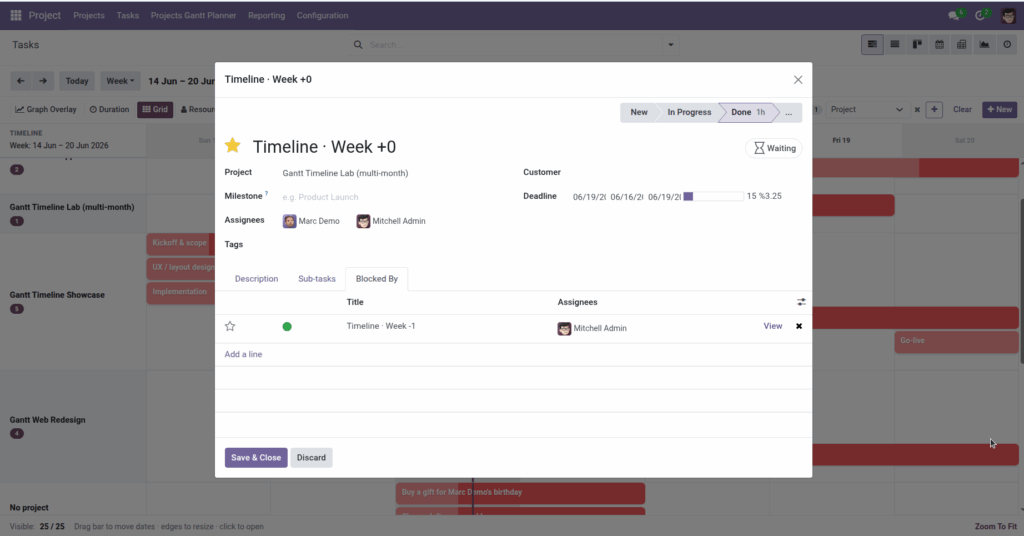
Set “blocked by” relationships and read dependency arrows on the chart.
Overview
Some tasks cannot start until others finish – for example, “Launch website” must wait for “Finish testing.” In Odoo, you link these using Blocked by (depend on) on the task form. The Gantt draws arrows from the blocking task to the dependent task so you see the chain visually.
How It Works
On each task form, the Blocked by field lists tasks that must be completed first. The Gantt shows finish-to-start links: an arrow runs from the end of the blocking task to the start of the dependent task.
Dependency arrows can be turned on or off globally in Settings (Show dependency arrows). When enabled, only links between tasks visible in your current filter appear.
Combine with Critical Path in the toolbar to highlight tasks with zero slack – delays on these tasks push out the whole schedule.
Step-by-Step Guide
- Open the dependent task (the one that must wait) on its form.
- Find the Blocked by field – often under a Dependencies or extra tab depending on your Project setup.
- Add the task(s) that must finish first – for example, “Write API documentation.”
- Save the task and return to the Gantt view.
- Confirm Show dependency arrows is enabled in Settings.
- You should see an arrow from the blocking task’s bar to this task’s bar.
- Click Critical Path in the toolbar to emphasize the longest chain of dependent work.
Fields Table
| Field Name | Description | Example |
|---|---|---|
Blocked by (Depend on) |
Tasks that must complete before this one can proceed |
Design mockups |
Blocking (Dependents) |
Tasks waiting on this one to finish |
Build frontend |
Dependency Link Type |
How tasks connect on the Gantt |
Finish to Start |
Show Task Dependencies |
Settings toggle to display arrows on the Gantt |
Enabled |
Critical Path |
Toolbar toggle highlighting zero-float tasks |
Active |
Field Explanations
Blocked by (Depend on)
The tasks this work waits on. If “Testing” is blocked by “Development,” testing shouldn’t start on the Gantt until development’s bar ends.
Blocking (Dependents)
The reverse view – which tasks are waiting on you. Useful when rescheduling to see downstream impact.
Dependency Link Type
Currently finish-to-start: the successor starts after the predecessor ends. This matches how most project plans work.
Show Task Dependencies
Organization-wide setting. When off, links are hidden even if tasks have blocked-by relationships.
Critical Path
Highlights tasks and links on the longest dependent chain. These are the tasks that determine your earliest possible completion date.
Tips
- After moving a blocking task, scan arrows to see if dependent tasks still make sense – you may need to drag followers too.
- Filter to one project when reviewing dependencies – arrows only draw between tasks visible on screen.
Common Mistakes
- Expecting arrows without “Blocked by” set Links come from task relationships on the form, not from drawing on the chart.
- Circular dependencies Don’t set Task A blocked by Task B and Task B blocked by Task A – planning becomes impossible.
- Dependencies turned off in Settings Check Settings if you set blocked-by but see no arrows.
Image