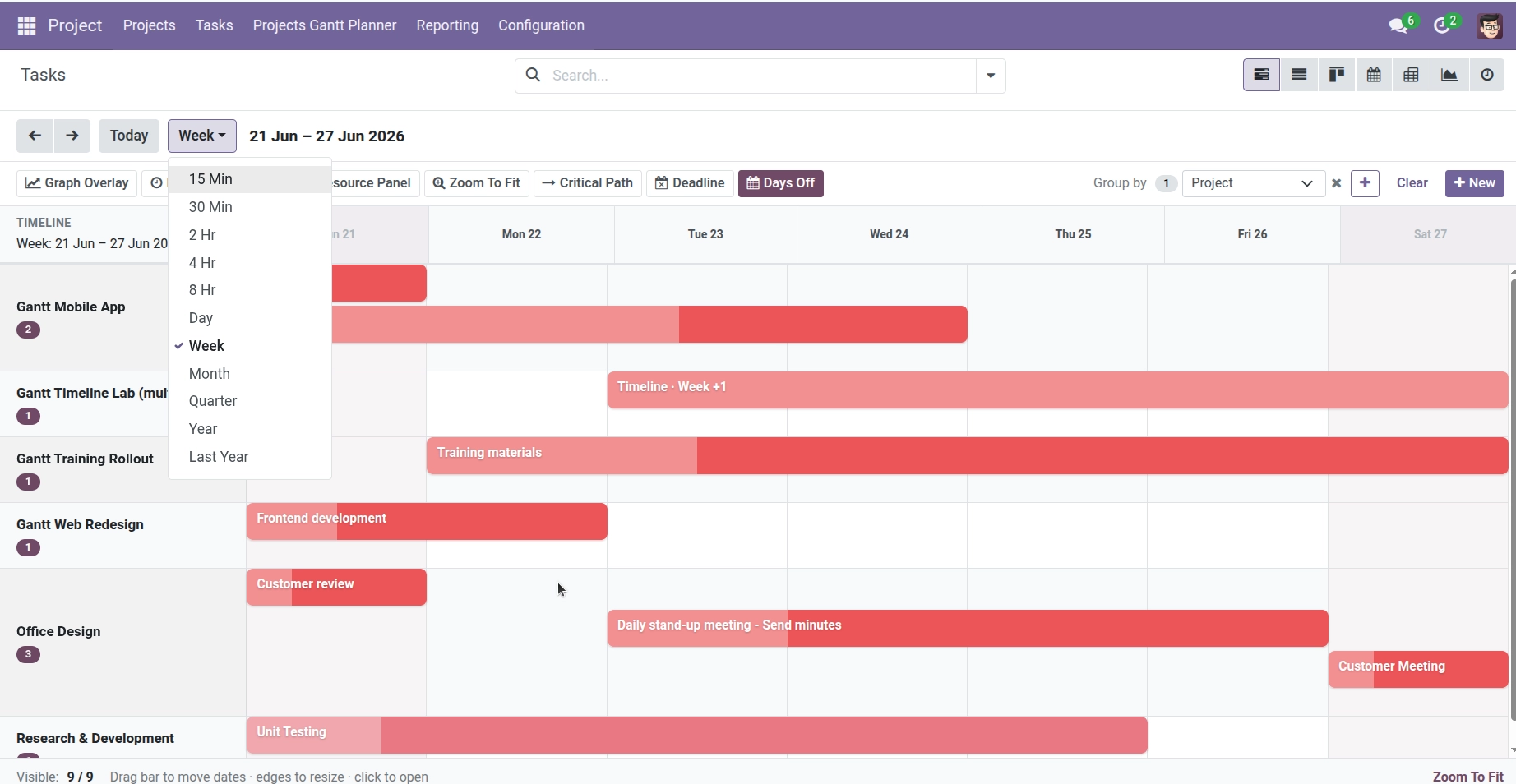
Move through time, jump to today, and pick the right zoom level for your planning.
Overview
The top toolbar lets you move backward and forward in time, jump straight to today, and switch zoom levels – from 15-minute slices up to a full year. Choosing the right scale helps you plan daily work or review a quarterly roadmap.
How It Works
Previous / Next arrows: Shift the visible window one period at a time (one week in week view, one month in month view, etc.).
Today button: Centers the timeline on the current date. A vertical line marks today on the chart.
Scale selector: Choose how much time each column represents. Available scales include:
- Sub-day: 15 Min, 30 Min, 2 Hr, 4 Hr, 8 Hr
- Day, Week, Month, Quarter, Year, Last Year
Zoom To Fit: Automatically adjusts the view to include all scheduled tasks – perfect when the chart looks empty but you know tasks exist.
Your default scale can be set in Project → Configuration → Settings → Projects Gantt Planner.
Step-by-Step Guide
- Open the Gantt view and look at the top navigation bar (below the search area).
- Click ← or → to move to the previous or next time period.
- Click Today to return to the current date.
- Open the scale dropdown and pick Week for team planning, Month for overview, or Day for detailed scheduling.
- If no bars are visible, click Zoom To Fit in the facilities toolbar.
- Read the date range label on the left sidebar header – it shows exactly which dates you’re viewing.
Fields Table
| Field Name | Description | Example |
|---|---|---|
Default Gantt Scale |
Starting zoom when you open the Gantt (set in Settings) |
Week |
Timeline Range Label |
Displayed date span for the current window |
Week: 10 Jun – 16 Jun 2025 |
Today Line |
Vertical marker showing the current date/time |
Blue line on Wednesday |
Scale: Day |
Each column is one day – good for short tasks |
Mon, Tue, Wed… |
Scale: Month |
Each column is one month – good for long projects |
Jun, Jul, Aug… |
Field Explanations
Default Gantt Scale
Your organization’s preferred starting zoom. Individual users can still change scale during their session; the setting affects what you see first.
Timeline Range Label
Shown under “Timeline” on the left. Confirms which dates are on screen so you don’t reschedule tasks into the wrong week by mistake.
Today Line
A vertical indicator on the chart. Use it to see what’s already past due versus still ahead.
Scale: Day
Best when tasks last hours or a few days. Column headers show individual dates.
Scale: Month
Best for portfolio planning across many weeks. Individual days are compressed – use week or day view before precise drag-and-drop.
Tips
- Use Week as your daily driver and switch to Month for status meetings with leadership.
- Enable Days Off in the toolbar to shade weekends – helpful when planning Mon-Fri work.
Common Mistakes
- Thinking tasks disappeared They’re often outside the visible range. Click Today or Zoom To Fit first.
- Using year view for daily edits Bars become tiny and hard to drag. Zoom in before rescheduling.
Image