Install the app and see your first timeline in a few minutes.
Overview
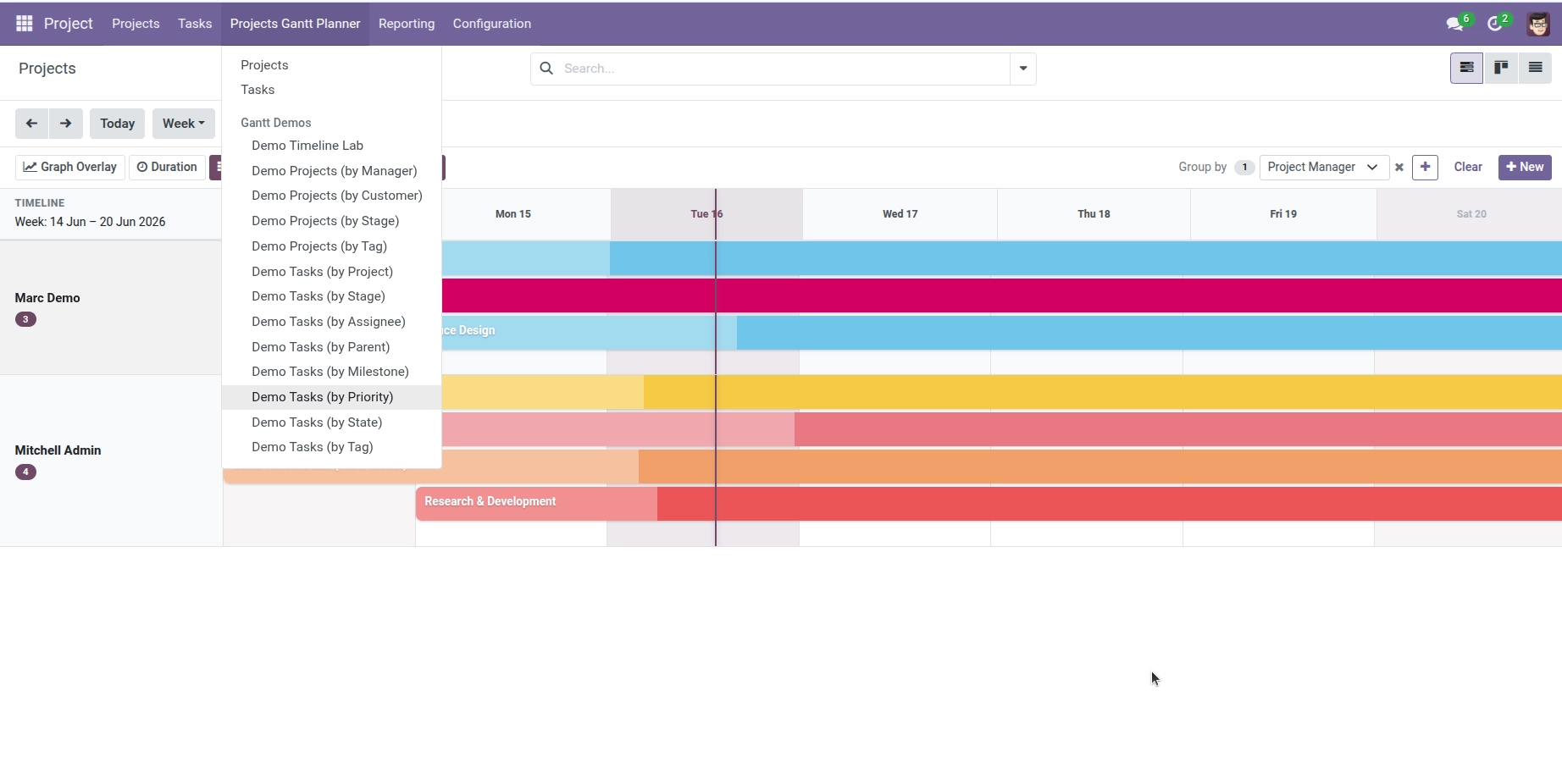
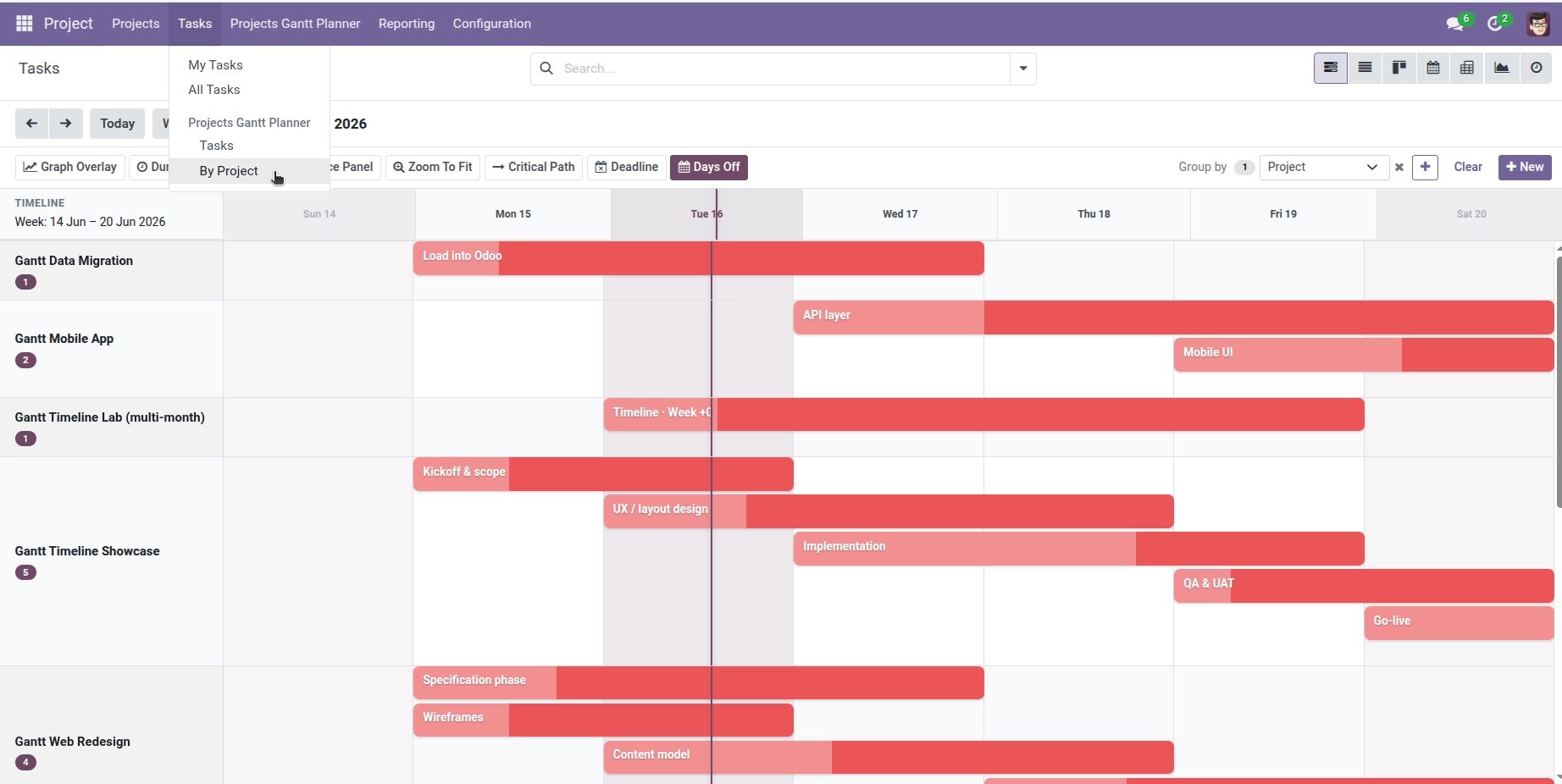
Projects Gantt Planner adds a visual timeline to Odoo’s Project app. Instead of reading dates in a list, you see each task as a colored bar on a calendar. You can drag those bars to reschedule work, resize them to change duration, and spot overdue items at a glance.
This guide is written for everyday users – project managers, team leads, and anyone who plans work in Odoo. No coding knowledge is required.
Not installed yet? If you do not see the Gantt menu in Odoo, complete the full installation first: Setup Project Gantt Planner.
How It Works
Once installed, the app connects to your existing Projects and Tasks. It adds:
- New menu items under Project called Projects Gantt Planner
- Planned Start and Planned End dates on each task
- A Gantt view mode (alongside List, Kanban, and Calendar)
- Extra buttons on project forms to jump straight into the timeline
Tasks only appear on the Gantt when they have planned dates (or when the system fills them in automatically). The chart updates instantly when you drag a bar or change dates on the task form.
Step-by-Step Guide
- Install the app. Ask your Odoo administrator to install Projects Gantt Planner from the Apps menu. After installation, refresh your browser.
- Open the Gantt menu. Go to Project → Projects Gantt Planner → Tasks. This opens the main task timeline.
- Make sure tasks have dates. If the chart looks empty, open a task and set Planned Start and Planned End, or use the filter Has Planned Dates to see which tasks are ready.
- Try dragging a bar. Click and hold a task bar, move it left or right, and release. The planned dates save automatically.
- Explore settings (optional). Go to Project → Configuration → Settings and scroll to Projects Gantt Planner to set your preferred default zoom and colors.
Fields Table
| Field Name | Description | Example |
|---|---|---|
Planned Start |
When the task is scheduled to begin on the Gantt chart |
Mon 10 Jun 2025, 09:00 |
Planned End |
When the task is scheduled to finish on the Gantt chart |
Wed 12 Jun 2025, 17:00 |
Gantt Progress (%) |
How complete the task looks on the bar, based on its status |
25% (In Progress) |
Planned Duration (days) |
Length of the task bar in days |
2.5 days |
Overdue on Gantt |
Whether the planned end date has passed and the task is not done |
Yes / No |
Field Explanations
Planned Start
This is the left edge of the task bar on the timeline. It tells your team when work should begin. If you leave it empty when creating a task, Odoo may fill it from the assignment date or today’s date.
Planned End
This is the right edge of the bar – when the task should be finished. It can be set manually, taken from the deadline, or calculated from allocated hours.
Gantt Progress (%)
A shaded fill inside the bar shows progress. It updates automatically from the task status (for example, Done = 100%, In Progress = 25%). You do not type this number yourself.
Planned Duration (days)
The number of days between planned start and end. Helpful when comparing task length in list views without opening the Gantt.
Overdue on Gantt
Turns on when the planned end date is in the past and the task is still open. Overdue bars may appear highlighted on the chart so you can act quickly.
Tips
- Start with one project. Filter tasks by project, set planned dates on a handful of tasks, then open the Gantt to see a clean, readable chart before adding your whole portfolio.
- Use the demo data if your administrator installed it – sample projects like “Timeline Lab” show weeks of tasks with dependencies already set up.
Common Mistakes
- Expecting every task to appear automatically Tasks need planned start and end dates (or smart defaults) to show as bars. Tasks without dates won’t appear in the current time window.
- Looking in the wrong menu The Gantt lives under Project → Projects Gantt Planner, not only in the standard task list. You can also switch any task list to Gantt view using the view switcher icons.
- Setting end before start Planned End must be after Planned Start. Odoo will adjust invalid dates, but it’s better to set them in the right order from the start.
Image