Create beautiful, shareable web dashboards that show live numbers, charts, and tables from your Odoo data.
Overview
Portal Pages let you publish dashboards anyone can open in a web browser – without logging into Odoo. Each page has its own web address (URL) and can show KPIs, bar charts, pie charts, data tables, alerts, and many other visual blocks.
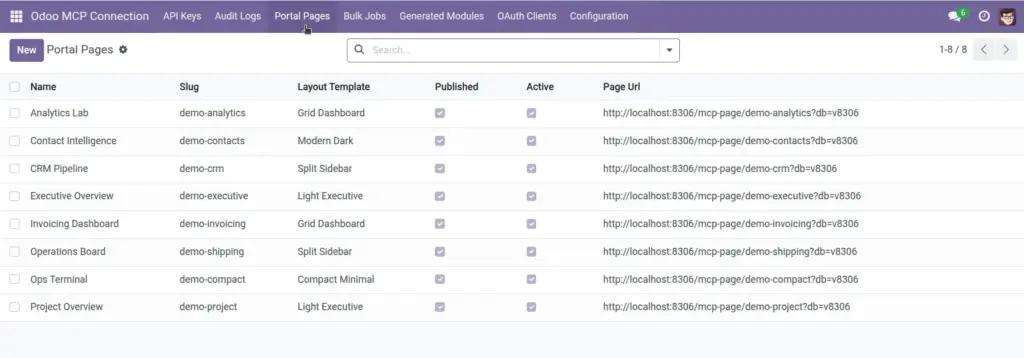
Pages can pull live data from Odoo (e.g. total contacts, recent invoices) or display static content designed by you or AI. The app includes ready-made demo pages like Contact Intelligence, CRM Pipeline, and Invoicing Dashboard to inspire your own.
Public address format: https://your-server.com/mcp-page/your-page-name?db=your_database
How It Works
Each portal page stores a Page Specification – a structured description of what to show. When someone opens the page URL, Odoo reads this specification, fetches live data if needed, and renders a styled dashboard.
You can optionally link an API Key to the page so data queries run as a specific Odoo user (respecting their permissions).
Choose a Layout Template to control the visual style:
- Modern Dark – sleek dark theme for operations centers
- Light Executive – clean white layout for leadership reports
- Compact Minimal – dense view for monitoring screens
- Split Sidebar – navigation sidebar with main content area
- Grid Dashboard – card-based grid layout
Pages must be marked Published before they are visible to visitors.
Step-by-Step Guide
Go to Odoo MCP Connection → Portal Pages.
Click New or open a demo page (e.g. Contact Intelligence) to use as a starting point.
Enter a Name (e.g. “Weekly Sales Board”). The Slug auto-fills for the URL – you can customize it.
Pick a Layout Template that fits your audience.
Optionally select an API Key if live data should use a specific user’s access.
Edit the Page Specification to define widgets (KPIs, charts, tables). AI tools can also create pages for you.
Check Published when ready to share.
Copy the Page URL from the form and share it with your team. Include ?db= on multi-database servers.
Fields Table
| Field Name | Description | Example |
|---|---|---|
Name |
Title shown on the dashboard and in Odoo lists |
CRM Pipeline |
Slug |
URL-friendly name used in the web address |
crm-pipeline |
Active |
Turn off to hide the page completely |
Checked |
Published |
Must be on for the public URL to work |
Checked |
API Key |
Optional – which user’s permissions to use for live data |
Demo API Key |
Page Specification |
Structured definition of dashboard content (JSON format) |
KPIs, charts, and tables configuration |
Layout Template |
Visual theme for the public page |
Light Executive |
Page URL |
Full shareable link (read-only, auto-generated) |
https://mycompany.odoo.com/mcp-page/crm-pipeline?db=main |
Embed Token |
Optional security token for embedded views |
Random token string |
Common Widget Types in Page Specifications
| Widget Type | Description | Example |
|---|---|---|
KPI |
Single number highlight |
Total Contacts: 1,248 |
Chart / Chart Data |
Bar, line, or pie chart from Odoo data |
Invoices by payment status |
Table |
Rows of Odoo records |
Recent sales orders (last 15) |
Alert |
Colored status message banner |
“Q2 targets on track” |
Trend |
KPI with up/down change indicator |
Revenue +12% vs last month |
Progress |
Progress bar toward a goal |
Sales quota 78% complete |
Timeline |
List of events in order |
Project milestones |
Field Explanations
Name
The display title visitors see at the top of the dashboard. Also used in Odoo’s portal page list and navigation between published pages.
Slug
Becomes part of the URL. Use lowercase words separated by hyphens. Auto-generated from the name if left empty. Must be unique.
Active
Master on/off switch. Uncheck to take the page offline without deleting your work.
Published
Even if active, unpublished pages are not accessible via the public URL. Use this as a draft/publish workflow.
API Key
When live widgets query Odoo data, they run as this key’s linked user. Choose a key with appropriate read access. Demo pages use the demo key.
Page Specification
The blueprint for your dashboard. Defines title, widgets, charts, and layout details. Can be written by hand, copied from demos, or generated by AI through the connector.
Layout Template
Controls colors, spacing, and overall look. Try different templates on the same data to see what fits your brand.
Page URL
Ready to copy and share. Bookmark this for executives who want a daily numbers check without opening Odoo.
Embed Token
Optional extra security for embedding the page in other websites. Most internal dashboards do not need this.
Tips
- Open demo pages first (
demo-contacts,demo-crm,demo-invoicing) to see live examples before building from scratch. - Live data refreshes every time someone loads the page – no manual refresh needed in Odoo.
- Ask your AI assistant (via MCP) to “create a portal page for open sales opportunities” – it can generate the page specification for you.
Common Mistakes
- Forgetting to publish: The page exists in Odoo but visitors get an error. Always check Published before sharing the URL.
- Empty widgets on live pages: Live widgets need a valid Odoo data source and an API key whose user can read that data. Check permissions if numbers show zero.
- Invalid page specification: A formatting error in the specification causes a server error. Validate JSON structure or copy from a working demo page.
Image