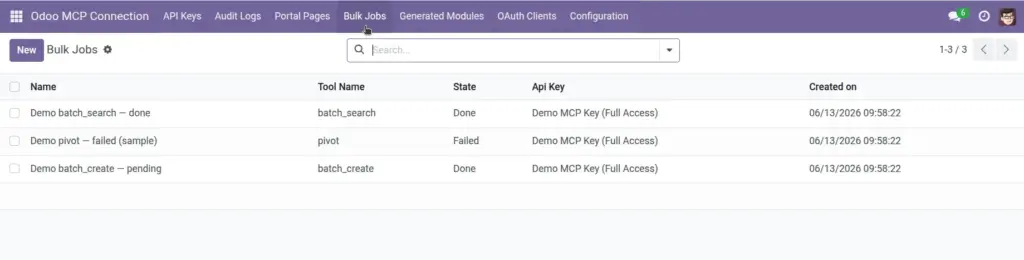
Monitor large AI operations that run in the background – batch updates, exports, and heavy data processing.
Overview
When AI needs to process hundreds or thousands of records at once, doing it all in one instant request could slow down your server. Instead, Odoo MCP Connection queues these as Bulk Jobs that run in the background.
You can see each job’s status, progress, results, and any error messages from Odoo MCP Connection → Bulk Jobs. Jobs are typically started by AI tools (not manually in Odoo), but you monitor and manage them here.
How It Works
- An AI tool submits a large batch operation (e.g. batch update products, export dataset).
- Odoo creates a Bulk Job record in Pending state.
- A scheduled background task picks up pending jobs and runs them one at a time.
- While running, status changes to Running with progress counters.
- When finished, status becomes Done (with results) or Failed (with error details).
- You can Cancel jobs that are still pending or running if needed.
Step-by-Step Guide
Go to Odoo MCP Connection → Bulk Jobs.
Review the list – jobs are sorted with newest first.
Check the State column: Pending, Running, Done, Failed, or Cancelled.
Click a job to open details.
Read Tool Name to understand what operation was requested.
Check Progress and Progress Total while a job is running.
When done, review Result for the outcome or Error Message if it failed.
To stop a job early, open it and click Cancel (only works for Pending or Running jobs).
Fields Table
| Field Name | Description | Example |
|---|---|---|
Name |
Auto-generated job label |
batch_update #2026-06-12 14:30 |
API Key |
Which key submitted this job |
Automation Bot Key |
User |
Odoo user the job runs as |
Inventory Manager |
State |
Current job status |
Done |
Tool Name |
Which AI operation was requested |
batch_create |
Payload |
Details of what the AI asked to process |
List of 200 product updates |
Result |
Outcome data when job completes successfully |
200 records updated, 0 errors |
Error Message |
Explanation when job fails |
Access denied for model product.product |
Progress |
How many items processed so far |
150 |
Progress Total |
Total items to process |
200 |
Created On |
When the job was submitted |
12 Jun 2026, 2:30 PM |
Field Explanations
Name
Automatically created from the tool name and timestamp. Helps you find a specific job in the list.
API Key
Shows which connection submitted the work. Cross-reference with Audit Logs for the full request history.
User
The Odoo account whose permissions apply to all record changes in this job.
State
Pending = waiting to start. Running = in progress. Done = finished successfully. Failed = stopped with an error. Cancelled = stopped by a user.
Tool Name
The batch operation type – batch create, batch update, export dataset, submit_job, etc.
Payload
What the AI sent – record lists, filters, or export parameters. Useful for understanding what the job tried to do.
Result
Summary of successful completion – counts, IDs created, file references, etc.
Error Message
Full error text when something went wrong. Share this with your Odoo partner if you need help fixing permissions or data issues.
Progress & Progress Total
Track completion during long jobs. If progress stalls, the server may be under heavy load.
Tips
- Failed bulk jobs often point to permission problems – check the API key’s Model Access rules for the data type mentioned in the error.
- Jobs process in small batches automatically. You do not need to restart Odoo – the background scheduler handles it.
- For very large operations, ask AI to split work into smaller batches to reduce failure risk.
Common Mistakes
- Assuming instant completion: Large jobs take time. Check back after a few minutes if status is still Running.
- Cancelling a nearly-done job: Cancelled jobs cannot be resumed. Let Running jobs finish unless there is a clear problem.
- Ignoring failed jobs: A failed batch may mean partial data was not updated. Review the error and re-run with corrected permissions or data.
Image