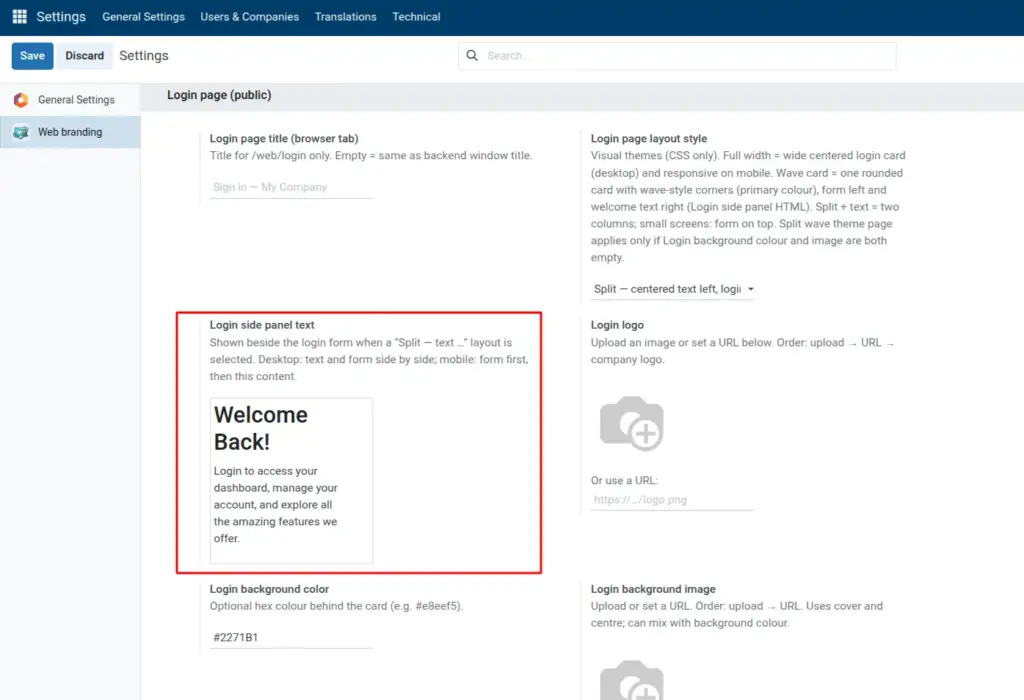
Add a welcome message beside the login form on split layouts.
Overview
Login side panel text is rich HTML content shown beside the login form on split-style and wave card layouts. It is ideal for a welcome headline, short value proposition, support hours, or a link to your public website.
On smaller screens the layout often stacks vertically; visitors may see the login fields first and your message below. Write so the page still makes sense in that order.
The module ships a sensible default message after install; replace it with your own wording rather than deleting everything unless you intentionally want an empty panel.
How It Works
The field uses Odoo’s HTML editor, so you can apply headings, bold text, links, and lists without writing raw code in a text file.
Content is stored on the same Web branding settings record as other login options. Saving publishes it to the public login template for the layouts that render the side panel.
If you switch to a layout without a side panel, the HTML remains saved but is not shown until you pick a compatible layout again.
Step-by-Step Guide
- Select a split or wave layout.
- Edit Login side panel text.
- Save and check desktop and phone views.
Fields Table
| Field Name | Description | Example |
|---|---|---|
Login side panel text |
HTML welcome content beside login form |
Welcome Back! Log in to your dashboard… |
Field Explanations
Login side panel text
Rich HTML welcome or marketing copy shown next to the form on split and wave card layouts; on mobile the form usually appears first, then this content. Keep copy concise for small screens.
Tips
- Tip: Structure content as one H1 or H2, one short paragraph, and at most one secondary link so mobile readers are not overwhelmed.
- Tip: Use HTTPS links only; guests hitting the login page may not be logged in to anything yet.
- Tip: Preview in the same browser width as your typical kiosk or office laptop if staff often sign in on shared PCs.
Common Mistakes
- Mistake: Spending time on side panel copy while Login page layout style is set to Standard or another style that never shows the panel.
- Mistake: Pasting very wide tables or huge images into the HTML editor, which breaks narrow layouts.
- Mistake: Relying on tiny font sizes in the editor; some readers use browser zoom or low vision modes.
Image