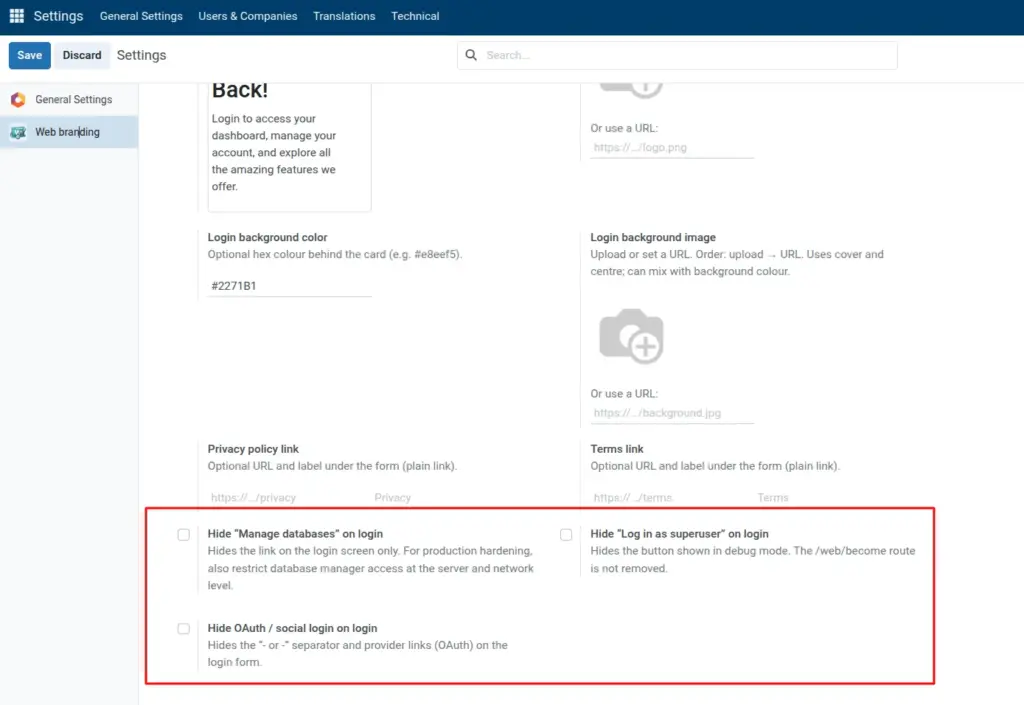
Hide database manager, superuser, or social login on the login screen.
Overview
Three boolean options hide specific controls on the public login screen: the database manager link, the debug-only superuser shortcut, and OAuth / social provider buttons. Use them to present a simpler, more corporate sign-in page.
These toggles only affect what typical visitors see in the browser. They do not by themselves harden your server, remove routes, or disable database administration tools reachable by other means.
Combine with good hosting practice (firewall, reverse proxy, Odoo configuration) for real security, especially on internet-exposed instances.
How It Works
When Hide Manage databases on login is enabled, the Manage Databases link is not shown on /web/login. Administrators may still reach database tools through other URLs or server access if those are exposed.
When Hide Log in as superuser on login is enabled, the superuser entry point that appears in certain debug configurations is hidden from the login UI.
When Hide OAuth / social login on login is enabled, provider buttons and the surrounding separator line are hidden so users rely on database email and password (or your other configured flows).
Step-by-Step Guide
- Open Login page (public) in Web branding settings.
- Enable hide options as needed.
- Save and test on /web/login.
Fields Table
| Field Name | Description | Example |
|---|---|---|
Hide Manage databases on login |
Hides Manage Databases link |
On for public sites |
Hide Log in as superuser on login |
Hides debug superuser button |
On in production |
Hide OAuth / social login on login |
Hides social provider buttons |
On if email login only |
Field Explanations
Hide Manage databases on login
Removes the Manage Databases link from the login screen UI for a cleaner public appearance. Does not replace server hardening; lock down database manager routes separately for production.
Hide Log in as superuser on login
Hides the superuser shortcut that appears in certain debug setups. Turn on for production so casual visitors do not see an admin entry point.
Hide OAuth / social login on login
Hides OAuth provider buttons so users sign in with database email and password only. Use when you do not offer social login or want a single sign-in method shown.
Tips
- Tip: Pair hidden OAuth with clear communication to users if your company previously advertised “Sign in with Google” or similar.
- Tip: Use a custom footer line at the same time for a consistent white-label login.
- Tip: After enabling options, test both an internal browser and an external network path so you see what customers see.
Common Mistakes
- Mistake: Believing hiding Manage Databases alone removes database management from the internet-facing deployment.
- Mistake: Hiding OAuth while some users still only have social accounts configured, which blocks them from signing in.
- Mistake: Forgetting to Save settings before testing the login page in another browser.
Image