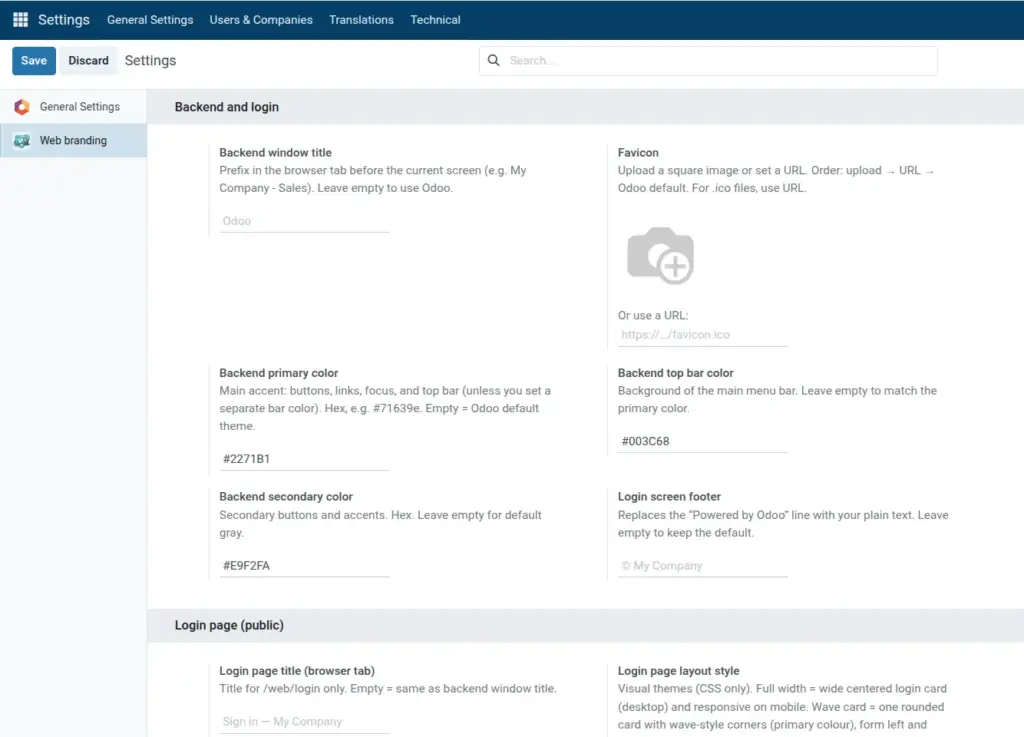
Show your company icon and a custom title on every browser tab.
Overview
The favicon is the small icon browsers show on tabs, bookmarks, and sometimes in history. Web Brand lets you set it from an upload or a URL, and it applies to both the logged-in backend and the public login page for a consistent brand mark.
You can also set Login page title (browser tab) so the sign-in tab shows wording such as “Sign in – Your Company” without changing how the backend tab is titled for staff.
Together with Backend window title, you control what people see in the tab strip at every stage of using Odoo.
How It Works
When you upload an image, Odoo stores it and serves it as the favicon. If the upload is empty, Web Brand uses Favicon URL instead. If both are empty, Odoo’s default icon remains.
The login-only tab title is optional: if you leave it blank, the login tab can reuse the same idea as your backend title (see field help in Odoo for the exact fallback on your version).
Browsers cache favicons aggressively. After saving, you may need a hard refresh, a new private window, or a short wait before the new icon appears everywhere.
Step-by-Step Guide
- Open Settings → Web branding.
- Under Favicon, upload a square PNG or paste a full URL.
- Set Login page title (browser tab) under Login page (public) if needed.
- Click Save and reopen the login tab.
Fields Table
| Field Name | Description | Example |
|---|---|---|
Favicon (upload) |
Square image for browser tabs |
company-icon.png |
Favicon URL |
Used only if no upload; good for .ico files |
https://mysite.com/favicon.ico |
Login page title (browser tab) |
Tab title on login page only |
Sign in – Acme |
Field Explanations
Favicon (upload)
Upload a square image file stored in Odoo. Best for PNG; shown on backend and login browser tabs. Takes priority over the URL field when both are set.
Favicon URL
Full link to an icon hosted outside Odoo. Used when there is no upload, or when you need a .ico file that you do not upload through the image widget.
Login page title (browser tab)
Text shown only on the public sign-in page tab. Leave empty to fall back to the backend window title so tabs stay consistent without duplicating data.
Tips
- Tip: Prefer a square PNG at least 32×32 pixels (or larger square artwork) on a solid background so the icon stays readable when shrunk.
- Tip: If your marketing team hosts a master
.icoon the website, paste that HTTPS URL into Favicon URL instead of uploading. - Tip: Keep the login tab title under about 50 characters so it is not heavily truncated on mobile browsers.
Common Mistakes
- Mistake: Expecting
.icoupload through the image widget to behave like a PNG; use Favicon URL for.icofiles when upload is not suitable. - Mistake: Using a non-HTTPS URL on a site served over HTTPS, which browsers may block as mixed content.
- Mistake: Filling both favicon upload and URL and forgetting that upload wins-you may think the URL is broken when the upload is still set.
Image