
Setup Web Brand
New user? Full install guide: download, upload, restart, install, permissions, and verify.

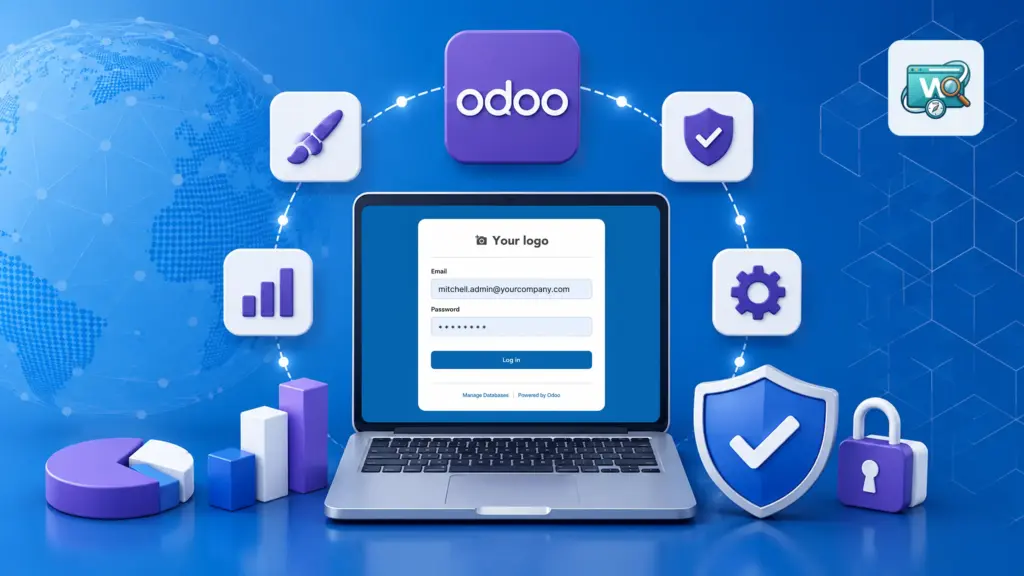
Brand your Odoo backend and login screen from one place - Settings → Web branding. Set your company colors, logo, favicon, login layout, and more. No coding required.

By Akash Soni May 25, 2026
New user? Full install guide: download, upload, restart, install, permissions, and verify.
Set your brand colors and the text shown in the backend browser tab.
Upload your company icon and set a custom login page tab title.
Compare all login page styles and pick the one that fits your brand.
Add your logo and a background color or image behind the login form.
Write a welcome message shown beside the login form on split layouts.
Add legal links and replace “Powered by Odoo” with your own text.
Hide Manage Databases, superuser login, or social sign-in buttons.

Match buttons, menu bar, and links to your brand with primary and secondary colors.

Show your company name and icon in every browser tab for backend and login.

Pick from 10 styles: split screen, wave card, full width, minimal, and more.

Hide database manager, superuser, or social login links for a professional look.