Overview
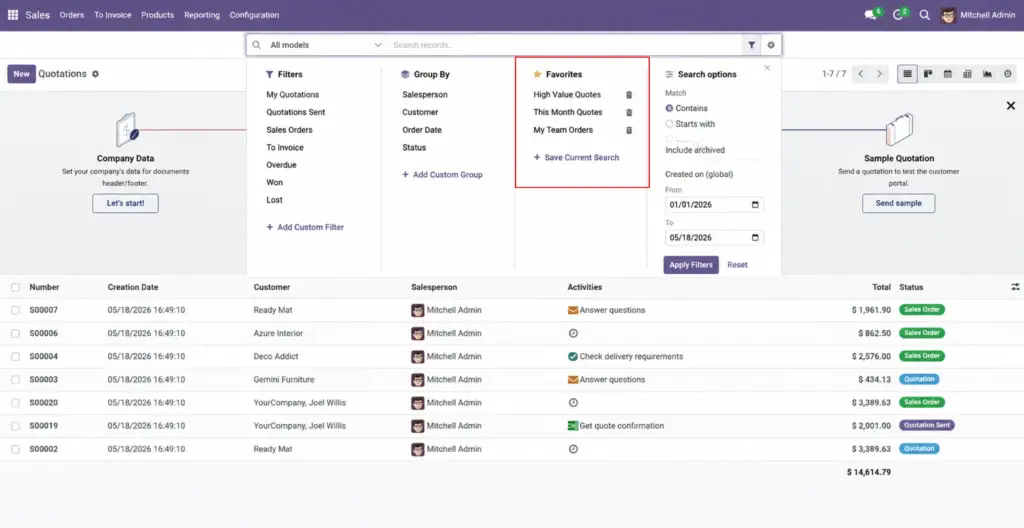
The filter menu is where you move from “quick guess” to “precise answer.” You can change how strictly Odoo matches your text, include old archived records, limit by creation dates, tap ready-made filters that normally live on each area’s search screen, and even group results to see clusters (for example by city) when you are focused on a single area.
Why it matters: customer service teams cut noise, accountants find old invoices faster, and project coordinators spot tasks that slipped to the wrong stage.
How it works
When you pick exactly one area, the bar can reuse the same building blocks your apps already expose on their search screens. That means the shortcuts you know from daily work-like “My pipeline” or “This month”-can also power the bar’s search.
When you search many areas at once, the bar keeps things simpler: it focuses on natural display names and light date windows so performance stays snappy.
Step-by-step guide
- Open the filter control next to the bar.
- Choose how text should match: contains, starts with, or exact.
- Toggle include archived when you expect the record might be inactive.
- Optionally set Created from and Created to dates to focus on new or historical items (where your area supports it).
- With one area selected, tick any ready-made filters you need.
- Still in one area, pick a group by field if you want results clustered (for example by salesperson).
- Type your text again or press search; review chips inside the panel if your layout shows them.
Fields table
| Field name | Description | Example |
|---|---|---|
Match mode |
Controls how strictly your text is compared to names and searchable fields. |
Exact match for a voucher number like “INV/2025/0042”. |
Include archived |
Lets Odoo include records that were archived or deactivated. |
Finding an old vendor you stopped ordering from. |
Created from / Created to |
Limits results to items first saved in Odoo inside a date window. |
Orders created last quarter for an audit sample. |
Ready-made filters |
Checkboxes that apply saved logic from the area’s search screen. |
“Quotations” only inside Sales. |
Group by |
Clusters matches under headings such as country or stage. |
Grouping leads by sales stage for a pipeline review. |
Field explanations
Match mode
“Contains” is forgiving, “starts with” is great for codes with known prefixes, and “exact” is perfect when you already copied the full value.
Include archived
Turn this on when you keep historical data for compliance but hide it from day-to-day lists.
Created from / Created to
These look at the moment a record was first created in Odoo, not every business date on the form. They quietly do nothing on areas that do not support that notion.
Ready-made filters
They save you from rebuilding the same logic by hand each week-check only what you need for this search.
Group by
Helpful when several matches share a label and you want to see how many sit in each bucket before opening anything.
Tips
- Start loose (contains), then tighten (exact) if you get too many hits.
- Pair date windows with “view all” when you need the complete list export.
- If chips appear in your panel, read them aloud-they summarize what Odoo is doing.
Common mistakes
- Expecting ready-made filters while searching all areas. Those extras appear when a single area is active.
- Mixing up “created in Odoo” with “invoice date.” Creation filters look at database creation time, not every printed date on a PDF.
Image