Overview
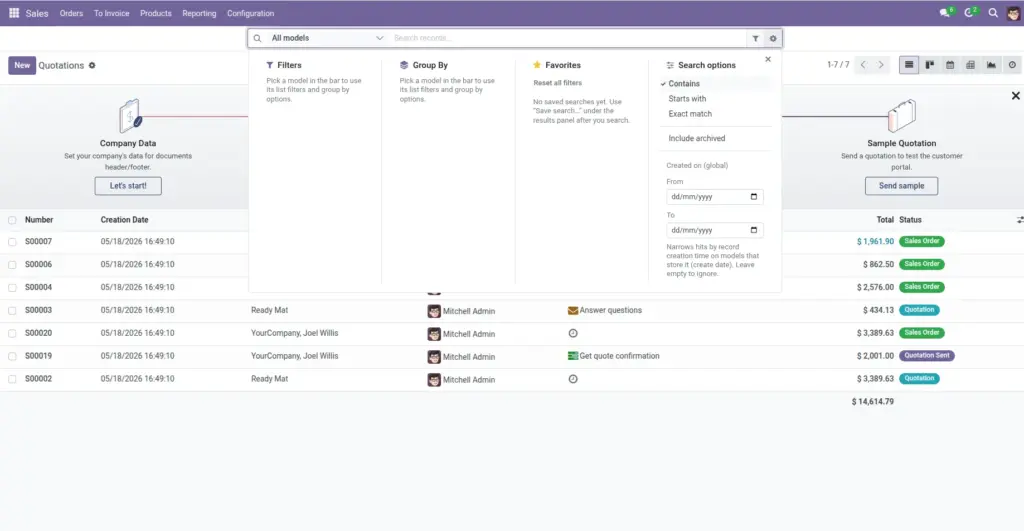
After your company installs the Advance Search Bar, you may see a slim search strip just under the top menu in Odoo’s back office. Think of it as a company-wide “spotlight” for the kinds of records your administrator turned on-often things like contacts, products, sales orders, bills, tasks, and more.
Why it matters: instead of opening each app and hunting for the right menu, you type what you remember (a name, a reference, part of a title) and pick from sensible matches.
How it works
The bar talks to Odoo in the background while you type. When you pause for a moment, it asks Odoo for a short list of matches. You can click a row to open that record, or use actions like “view all” when you want a full list with the same idea behind your search.
A small toggle may appear in the top-right system tray (near your user menu). That toggle only affects this browser on this computer-it shows or hides the bar so you can free space when you do not need it.
If your keyboard supports shortcuts, you can press Alt + Shift + F (Windows/Linux style) to jump the typing cursor into the bar when it is visible and expanded.
Step-by-step guide
- Sign in to Odoo’s back office as usual.
- Look below the main menu for the search strip.
- If you do not see it, check whether your administrator assigned you the “Use Advance Search Bar” access, or try the tray toggle to expand the bar again.
- Click inside the search field and type at least two characters.
- Wait a brief moment; matches appear in a panel under the field.
- Click a result to open it, or explore filters in the separate filter menu if you use it.
Fields table
Words you will see on screen and what they mean in plain language.
| What you see | What it is for | Example |
|---|---|---|
Search field |
Where you type what you are looking for. |
You type “Acme” to find a customer named Acme Ltd. |
Model / area picker |
Lets you search only one kind of record (for example Contacts) or everything enabled. |
You pick “Contacts” before typing a person’s name. |
Tray toggle |
Shows or hides the bar for this browser; it does not delete your settings. |
You hide the bar during a screen-sharing demo, then show it again later. |
Filter menu |
Extra choices that fine-tune how Odoo reads your text (match style, dates, and more). |
You turn on “include archived” to find old suppliers. |
Field explanations
Search field
This is your main typing box. Results only start after two characters so tiny typos do not overload the system.
Model / area picker
“Model” is an internal word for “kind of business record.” In daily language, treat it as the area you want to search-people, products, orders, and so on.
Tray toggle
Helpful when you want a cleaner screen. It is stored in your browser, so another computer may start expanded or collapsed differently until you adjust it there too.
Filter menu
Opens next to the bar and holds the “power user” switches that change how Odoo interprets your text. You will read more in the chapter Refine your search.
Tips
- Start with the shortest unique part of a name (for example a surname).
- If results feel noisy, narrow to one area using the picker, then search again.
- Keep the bar visible on busy days; hide it when you need maximum screen height.
Common mistakes
- Typing only one letter and expecting matches. The bar waits for at least two characters on purpose.
- Assuming everyone sees the same areas. Your access rights and company setup decide which areas appear.
- Thinking the tray toggle changed your saved searches. It only changes visibility on this device.
Image