
Set up Advance Search Bar
Download the add-on, place it on the server, restart Odoo, update Apps, install, and give users access-explained slowly for newcomers.

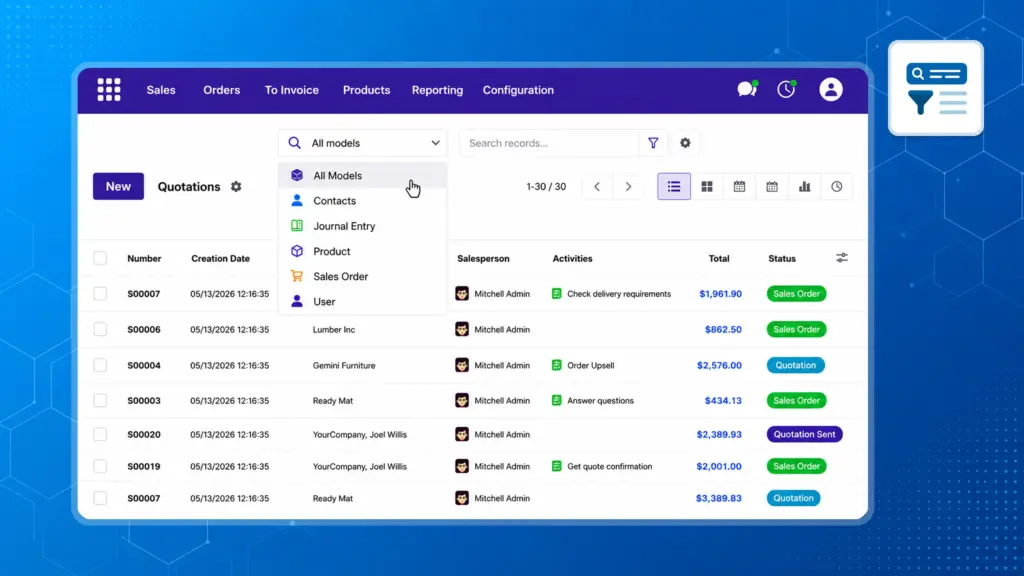
The Advance Search Bar sits under your main menu. It helps you jump to a customer, a product, an order, or many other records-without clicking through every app first.

By Akash Soni May 19, 2026
Download the add-on, place it on the server, restart Odoo, update Apps, install, and give users access-explained slowly for newcomers.
Where the bar appears, how to show or hide it, and the quick keyboard jump.
Pick Contacts only, Sales only, or “all enabled areas” before you type.
Match style, dates, archived records, ready-made filters, and grouping.
Jump to a list, a board view, or a blank “new” form in one click.
Store searches you run weekly and optionally load one when Odoo opens.
Make a backup copy of your shortcuts or bring them to another login.
Personal options in your user preferences: layout, colors, memory, and limits.

Search sits under the main menu; show or hide it from the top-right when you need space.

Pick a single type (e.g. Contacts) or clear the picker to search every enabled area.

Match style, archived rows, created dates, ready-made filters, and group-by-when one area is on.

Open a hit in one click, or switch to the full list for exports and bulk work.

List, kanban, or blank “new” form-placed left or right, as a menu or as buttons.

Save favorites and optionally load one automatically when you open Odoo.

Copy your shortcut set to another login or keep a backup file.

Choose layout and color style; optionally remember filters and recent searches.