Overview
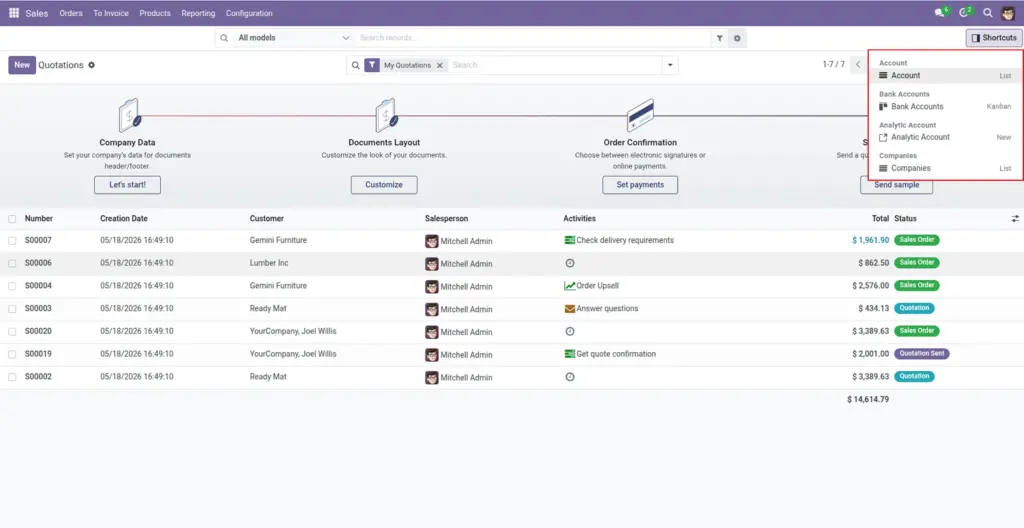
Shortcuts are personal buttons that jump straight to a list, a kanban board, or a blank “new record” form for an area you use all the time. They live beside the search field so you can open “My open tasks” or “New helpdesk ticket” without drilling through menus.
Why it matters: teams shave clicks off repetitive days, newcomers find their daily cockpit faster, and managers keep audit-friendly lists one tap away.
How it works
You define shortcuts on your user profile in the Advance Search Bar preferences page. Each row picks an area, how it should open, an optional friendly label, and-when you need it-an extra filter so the list opens already narrowed (for example only confirmed orders). Odoo stores these rows per person; they travel with your login, not with anyone else’s unless you share them using the export tool described later.
Step-by-step guide
- Open your avatar → Preferences (sometimes called My Profile).
- Go to the Advance Search Bar tab (wording may match your translation).
- In the shortcuts table, click Add a line.
- Pick the Model / area you want (Contacts, Projects, and so on).
- Choose Open as: List for a table, Kanban for cards, or New record for an empty form.
- Type a Label if you want a short custom name on the button.
- Optional: fill List / Kanban filter with a structured filter your administrator prepared for you (see tips).
- Drag the handle on the left to reorder shortcuts; save your user profile.
- Return to the main screen-your shortcuts should appear next to the bar.
Fields table
| Field name | Description | Example |
|---|---|---|
Sequence (drag handle) |
Sets the order shortcuts appear from left to right. |
Move “Today’s deliveries” to the front each Monday. |
Model |
The Odoo area this shortcut opens. |
“Stock Transfers” for warehouse pickers. |
Open as |
Whether to show a list, a kanban board, or a brand-new empty form. |
New record for quick lead capture at an expo booth. |
Label |
Optional shorter title on the button; otherwise the model title is used. |
“VIP accounts” instead of the full accounting label. |
List / Kanban domain (JSON) |
Optional advanced filter applied when opening list or kanban (ignored for new forms). |
Open only sales orders in the “sale” stage. |
Field explanations
Sequence
Think of it as priority. Items at the front are easiest to hit with the mouse on wide monitors.
Model
Only areas you are allowed to read appear. If something is missing, ask for access rather than forcing it.
Open as
“New record” checks that you may create rows in that area; if Odoo blocks you, pick list view instead.
Label
Purely cosmetic-use language your team already speaks.
List / Kanban domain (JSON)
This is technical glue. Many teams never touch it; others ask an Odoo partner for a safe snippet copied from a working saved filter.
Tips
- Keep labels under about four words so buttons stay readable.
- Use kanban for pipeline reviews; use list for mass editing or exports.
- If you hide shortcuts in preferences, they stay saved-just not shown.
Common mistakes
- Pasting a random filter copied from the internet. A bad filter simply opens an empty list-ask for help instead of guessing brackets.
- Expecting shortcuts to change other users’ screens. They are personal unless you import the same set elsewhere.
Image