Overview
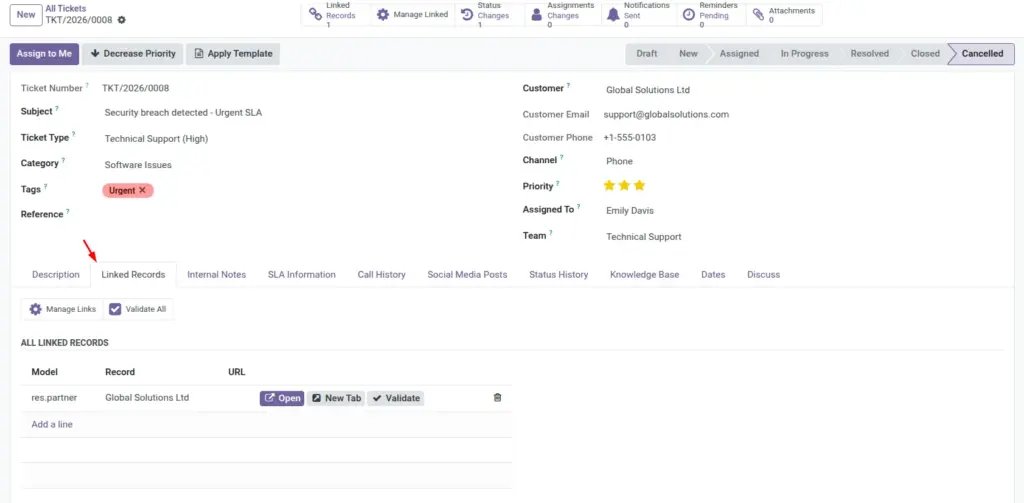
Linked records connect support tickets with relevant business data so agents can understand full context without switching between multiple modules. This makes troubleshooting faster and reduces the risk of missing important details during customer conversations. For teams handling complex cases, linked records improve both speed and accuracy.
How It Works
Users can attach related records manually while working on a ticket, or configure auto-link rules so the system creates links based on predefined conditions. These links can then be validated and reviewed for quality. Access logs provide traceability by showing who opened linked records and when, which supports governance and accountability.
Step-by-Step Guide
- Open a ticket and click Manage Links or Quick Add Link.
- Select related record type and record value.
- Save and validate links.
- Create auto-link rules in Configuration for repetitive cases.
- Review access logs when needed for audits.
Fields Table
| Field Name | Description | Example |
|---|---|---|
Linked Record |
Business record connected to ticket. |
Sales Order SO0456 |
Link Type |
Category of relationship. |
Reference Link |
Auto-Link Rule |
Condition-based linking automation. |
If category = Billing, link invoice record. |
Validation Status |
Whether linked record is valid. |
Valid |
Access Log |
Track who opened linked record. |
Manager viewed at 09:40 |
Notes |
Reason for linking record. |
Customer dispute needs invoice proof. |
Fields Explanation
Linked Record
Gives full context beside ticket details.
Link Type
Clarifies why relationship exists.
Auto-Link Rule
Saves manual effort for repeated scenarios.
Validation Status
Ensures links remain useful.
Access Log
Supports governance and compliance.
Notes
Helps future agents understand the link.
Tips
- Use auto-link for high-volume repeated cases.
- Add short notes for every manual link.
- Review invalid links weekly.
Common Mistakes
- Adding too many unnecessary linked records.
- Creating broad auto-link rules that attach wrong records.
- Skipping validation after process changes.
Image