Overview
This page explains how Paid and Unpaid affect your totals, so your Profit/Loss doesn’t feel confusing. It’s especially important when someone says: “We already invoiced the client—why is the project still showing a loss?”
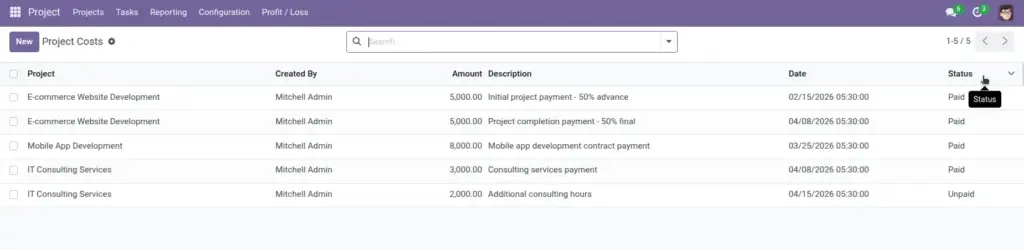
You’ll see a Paid / Unpaid status on Client Cost entries and External Expense entries. These statuses help you track what is settled and what still needs follow-up—but they don’t behave the same way for every total.
Real-life example: an advance payment is agreed and entered as Unpaid. Profit/Loss stays low until the money is received and the line is marked Paid.
How it works
Key rule to remember
Client Costs: only Paid lines count as revenue.
External Expenses: the total includes the expense lines you enter (status is mainly for tracking).
- Why Client Costs behave this way: Profit/Loss should reflect cash you actually received, not just expected invoices.
- Why expense status still matters: even if status doesn’t change the total, it helps you see what is pending payment.
Step-by-step guide
When you record a client payment
Create the Client Cost line as soon as it’s agreed. Keep it Unpaid until you confirm the payment was received.
When you receive the money
Update the Client Cost line to Paid. This is what makes revenue count in Profit/Loss.
When you record external expenses
Add the expense line with a clear description and correct project. Use Unpaid for bills you’re still waiting to pay.
During reviews
If Profit/Loss looks too low, first check whether client payments are still marked Unpaid.
Fields table
| Field Name | Description | Example |
|---|---|---|
Client payment status |
Controls whether a client payment is counted as revenue (Paid counts, Unpaid does not). |
Invoice sent today → Unpaid; bank receipt confirmed → Paid |
Expense payment status |
Tracks whether an expense has been paid (useful for follow-up). |
Vendor bill waiting approval → Unpaid; paid by finance → Paid |
Profit/Loss impact |
Profit/Loss increases when client payments change to Paid; it decreases when costs are added. |
Marking $5,000 as Paid raises Profit/Loss by $5,000 |
Field name explanations
Client payment status
Think of this as “Is the money in our account?”. If the answer is no, keep it Unpaid so your profit stays honest.
Expense payment status
Think of this as “Do we still need to pay this bill?”. It helps you manage follow-ups and cash planning.
Profit/Loss impact
If Profit/Loss looks wrong, check statuses first—especially client payments still marked Unpaid.
Tips
- Make “Paid” a controlled step: only change to Paid after confirmation (bank receipt, payment confirmation, or finance sign-off).
- Use Unpaid as a to-do list: Unpaid entries are a simple follow-up list for the team.
- Review status before meetings: five minutes of status cleanup makes profit reviews much more accurate.
Common mistakes
- Marking Paid too early: it can make a project look profitable even though the money hasn’t arrived.
- Never updating Paid: it can make a project look unprofitable even though payment was received.
- Using status instead of description: “Paid” isn’t a description—always write what the payment/expense was for.
Image