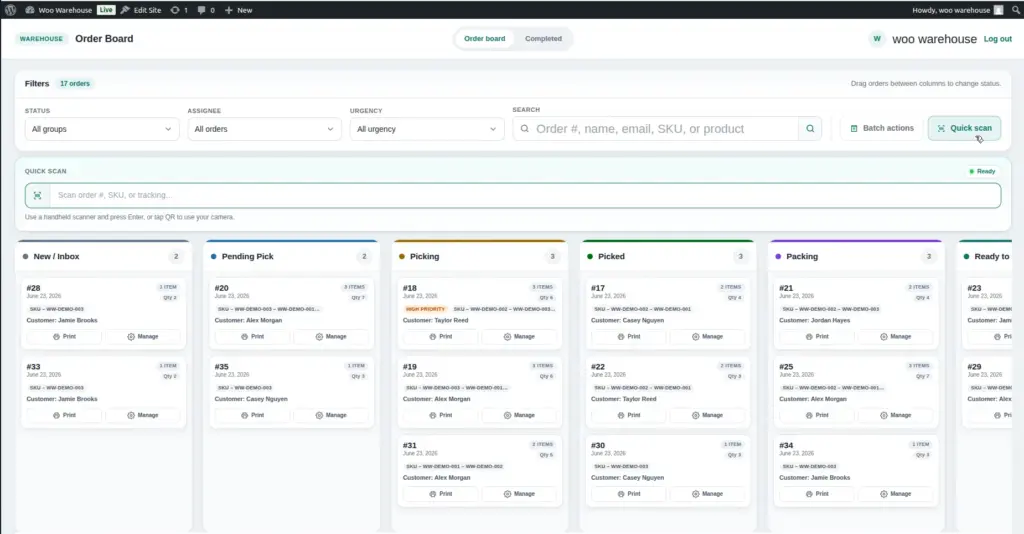
The barcode scanner lets your warehouse team look up orders instantly by scanning a barcode or QR code – without typing anything manually. Scan an order’s barcode, a product’s SKU barcode, or a shipping tracking barcode, and the matching order opens immediately on the board.
What Hardware Do You Need?
Woo Warehouse works with any standard USB or Bluetooth barcode scanner – there is no special hardware required. The scanner simply needs to type the scanned code into a text field on the screen, which is how almost all barcode scanners work by default.
Common scanners that work well:
- Any USB handheld barcode scanner (Honeywell, Zebra, Symbol, Datalogic)
- Bluetooth handheld scanners paired to a tablet or computer
- 2D barcode scanners (can read both barcodes and QR codes)
The warehouse portal works on tablets too. A Bluetooth barcode scanner paired to a wall-mounted tablet is an ideal setup – the picker can scan from across the workstation without moving to a keyboard.
What Can Be Scanned?
The scanner can look up orders from four different types of codes:
| What You Scan | What Happens | When to Use This |
|---|---|---|
Order ID / Order Number barcode |
Finds the matching active order on the board and opens its detail panel directly. |
Scan the barcode on a printed order slip or packing label to immediately pull up the order. |
WooCommerce Order Number (e.g. |
Same as above – finds the order by its WooCommerce order number, even if it contains the |
Useful if your order confirmation emails include a scannable QR code with the order number. |
Shipping Tracking Number |
Finds the order that has that tracking number saved. Opens the order detail panel. |
When a courier returns a parcel and you have the original tracking number on the label – scan it to find the original order. |
Product SKU barcode |
Finds active orders that contain that product. If only one order contains that SKU, it opens directly. If multiple orders contain it, a list of matching orders appears. |
When you pick up a product from the shelf and want to see which order it belongs to without searching manually. |
How to Use the Barcode Scanner
1. Log in to the Warehouse Portal
Open the portal Orders URL and log in as a Warehouse Staff or Warehouse Manager account.
2. Look for the scan input field on the order board
At the top of the Order Board, there is a search/scan field. It may look like a search box or may have a scanner icon next to it. Click inside this field to make sure it is active (the cursor should be blinking inside it).
3. Point your scanner at the barcode and scan
The scanner reads the barcode and types the code into the active field. It then automatically presses “Enter” (which is how barcode scanners work – they add a newline at the end of the scanned code). The portal receives the code and immediately searches for the matching order.
4. The matching order opens automatically
If a matching order is found on the active board, its detail panel opens immediately. If no match is found, an error message tells you what was scanned and that no order was found.
Common Issues and Fixes
| Problem | Likely Cause | Fix |
|---|---|---|
Scanning doesn’t do anything |
The scan input field is not selected/active |
Click inside the scan field first to activate it, then scan again. |
“No order found” for a valid order number |
The order may be in Completed status (no longer on the active board) |
Check the Completed Orders archive page instead. |
Wrong characters appear when scanning |
The scanner’s character encoding doesn’t match the field |
Check your scanner’s manual for how to configure the output format. Most scanners support USB HID mode which works universally. |
Product SKU scan finds no orders |
The product’s SKU in WooCommerce doesn’t match what is on the physical barcode |
Go to the product in WooCommerce and check that the SKU field matches the barcode exactly (case-sensitive). |
Tips for Barcode Scanning
- Always add SKUs to your WooCommerce products. The scanner can only look up products by SKU – if a product has no SKU, scanning its product barcode will not find anything.
- Print slips with barcodes and keep them with the packed orders. Scanning the slip barcode on the packing station makes it fast to pull up the order and add the tracking number after shipping.
- Mount the barcode scanner on a stand near the packing station so both hands are free for packing, and pickers just wave items past the scanner.
- The scanner only searches active orders on the board. Completed orders (moved to the archive) cannot be found by scanning – use the Completed Orders search instead.
Image