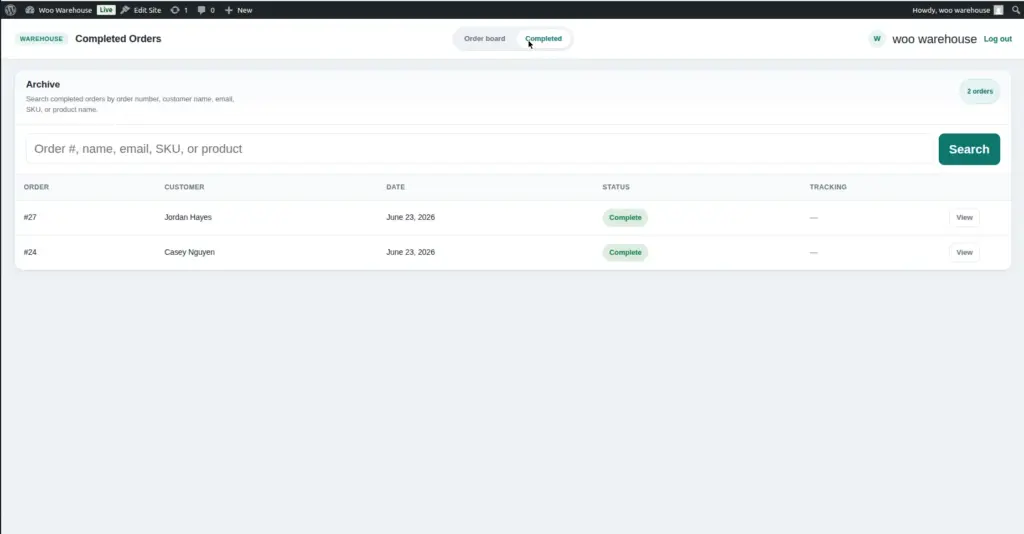
The Completed Orders archive is a separate page in the warehouse portal that shows all orders which have been fully fulfilled – those that reached the “Complete” warehouse status. These orders are removed from the active Kanban board to keep it clean and fast, but are preserved here for reference.
How to access: Use the Completed Orders URL from Warehouse → Settings → Portal URLs. Or log in to the portal, and navigate to the Completed section from the top navigation bar.
How Orders Move to the Archive
An order moves to the Completed Orders archive when its warehouse status is changed to “Complete.” This happens when a warehouse staff member or manager selects “Complete” in the status dropdown of the order detail panel on the active board.
Once an order is marked Complete:
- It is removed from the active Kanban board – it no longer shows as a card in any column
- It appears in the Completed Orders archive where it is stored indefinitely
- All the order data (items, tracking, picker history, status history) is preserved and viewable
Marking an order “Complete” in the warehouse portal does not automatically change the WooCommerce order status (e.g., from “Processing” to “Completed”). The warehouse status and the WooCommerce store status are separate. Ask your store admin to update the WooCommerce order status separately if needed.
Using the Completed Orders Archive
The Completed Orders page displays all fulfilled orders in a list format (not a Kanban board). You can:
| Action | How to Do It | When It's Useful |
|---|---|---|
Search for an order |
Use the search bar at the top of the page. Search by order number, customer name, or product. |
A customer calls about a past order and you need to find it quickly. |
View order details |
Click on any row in the list to open the full order detail view. |
Check what was in an order, when it was shipped, who picked it, and the tracking number. |
Check tracking information |
The tracking carrier and tracking number are shown for each completed order. Click the tracking link to open the carrier’s tracking page. |
A customer says their parcel has not arrived – check the tracking status without going to WordPress admin. |
View status history |
Open the order detail and look at the Status History section. |
Investigate when the order moved through each stage, who handled it, and if any delays occurred. |
Load more orders |
Click “Load More” at the bottom of the list to load older completed orders. |
Looking for an order that was fulfilled several weeks ago. |
Common Questions
Frequently asked questions about completed orders
Can I move a completed order back to the active board?
Yes. Open the order in the Completed archive, open the detail panel, and change the warehouse status back to an active status (e.g., “Shipped”). It will reappear on the active board in the correct column.
Can I delete completed orders?
The warehouse portal does not delete orders – WooCommerce orders are permanent records. To delete an order entirely, it must be done from WordPress admin → WooCommerce → Orders. This is not recommended for fulfilled orders.
Why is an order not showing in the archive even though I marked it Complete?
The archive is based on the warehouse status (set in the portal), not the WooCommerce store status. Make sure the order’s warehouse status is actually “Complete” – not just the WooCommerce order status.
How far back can I see completed orders?
All completed orders are stored indefinitely. Use the Load More button to go further back in time, or use the search to find older orders directly.
Image