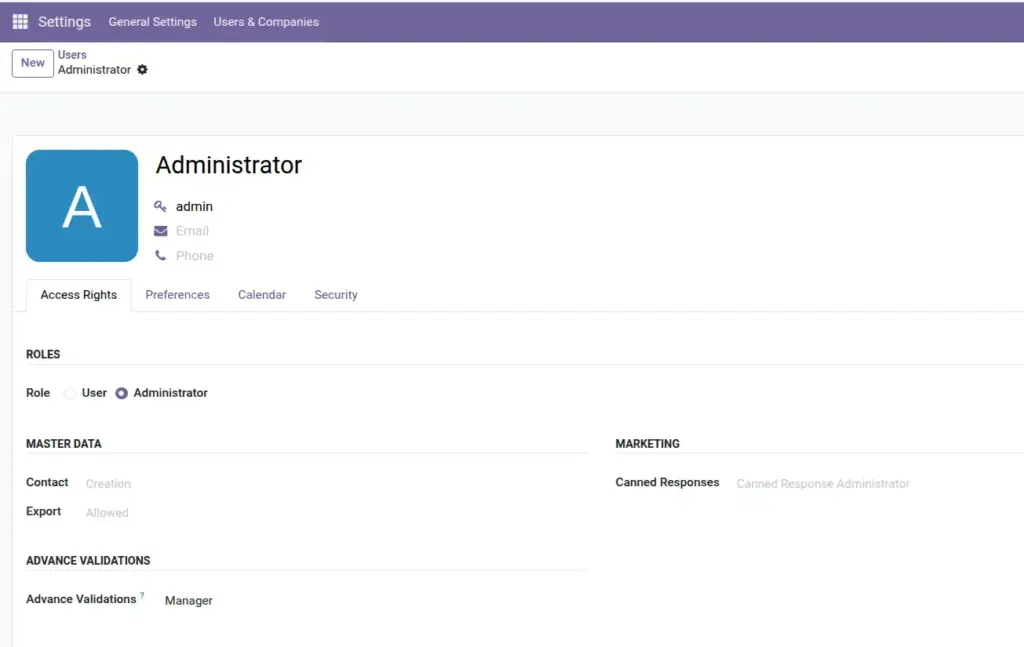
Understand who can configure rules, who can view logs, and how validations apply to everyone in your team.
Overview
Advance Validations has two access groups: User and Manager. These control which menus a person can see. Importantly, validation rules still apply to everyone – even people without any Advance Validations access group.
This chapter helps you decide which role to assign to each person on your team.
How It Works
When a validation rule is active, Odoo checks it every time someone saves a record – regardless of their role. Access groups only control who can configure rules and view the validation history.
System Administrators automatically have Manager rights. Regular business users (salespeople, accountants, etc.) do not need any special group unless they should view logs or manage rules.
Step-by-Step Guide
Assigning Access to a User
- Go to Settings → Users & Companies → Users.
- Open the user’s profile.
- Click the Access Rights tab.
- Scroll to Advance Validations.
- Check User or Manager as needed.
- Click Save. Ask the user to log out and back in.
Roles Comparison Table
| Capability | No Access Group | User | Manager | Administrator |
|---|---|---|---|---|
Rules apply when saving records |
Yes |
Yes |
Yes |
Yes |
View Validation Logs |
No |
Yes |
Yes |
Yes |
View Validation Reports |
No |
Yes |
Yes |
Yes |
View rules (read-only) |
No |
Yes |
Yes |
Yes |
Create and edit rules |
No |
No |
Yes |
Yes |
Overview Dashboard |
No |
No |
Yes |
Yes |
Data Audits |
No |
No |
Yes |
Yes |
Import / Export / Test Tools |
No |
No |
Yes |
Yes |
Receive alert emails |
No |
No |
Yes (default) |
Yes |
Field Explanations
Advance Validations – User
Read-only access to rules and profiles. Can browse Validation Logs and Reports. Ideal for supervisors who monitor data quality but should not change rules.
Advance Validations – Manager
Full access to create, edit, and delete rules, profiles, and audits. Can use all wizards and tools. Includes all User permissions automatically.
Profile Assignment (Users / Groups)
On a Validation Profile, you can limit which users or groups receive that profile’s rules. This is separate from the access groups above – it controls which rules apply to whom.
Tips
- Give Manager access only to 1–2 trusted people who own data quality policy.
- Use Profile Assignment to apply stricter rules to specific teams without giving them Manager access.
- In multi-company setups, rules and logs are filtered by the user’s allowed companies automatically.
Common Mistakes
- Giving Manager access to too many people – anyone with Manager can change or delete all rules.
- Expecting User role to block validations – User role only controls menu visibility, not whether rules run.
- Forgetting to save and refresh – permission changes require the user to log out and back in.
Image