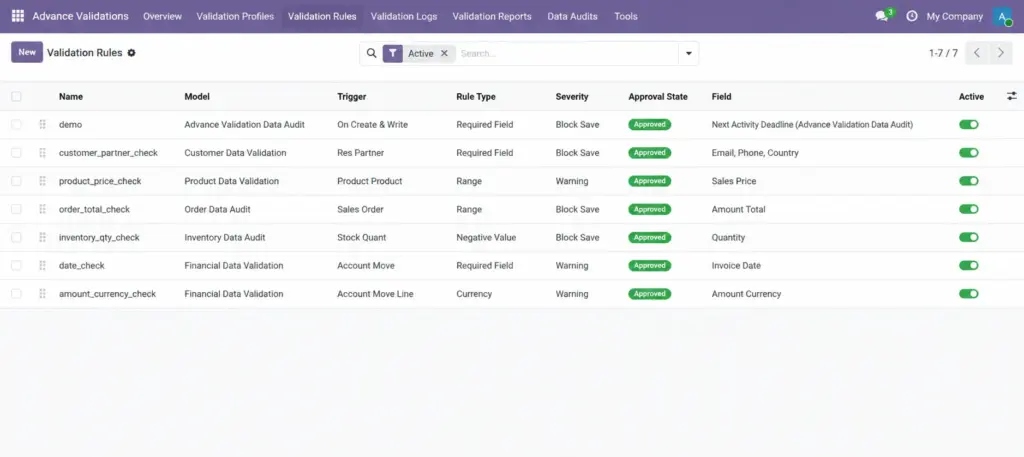
Learn all 10 rule types and how to configure checks that protect your data quality.
Overview
A Validation Rule is a single data-checking instruction. It defines what to check, when to check it, and what happens if the check fails. Rules are the building blocks of your data quality system.
Each rule targets a specific model (like Contacts or Sales Orders) and can either Block Save or show a Warning Only.
How It Works
When a user creates, edits, deletes, or changes the status of a record, Odoo runs all active rules that match the model, trigger, user group, and company. If a rule fails:
- Block Save — the save is rejected and the user sees your error message
- Warning Only — the save succeeds, the event is logged, and an internal note may appear on the record
Step-by-Step Guide
- Go to Advance Validations → Validation Rules.
- Click New (or use the Rule Builder Wizard for guided creation).
- Enter a descriptive Name (e.g., “Phone Required on Company Contacts”).
- Select the Model this rule applies to.
- Optionally link a Profile to group this rule.
- Choose the Scope: Whole Record or One2many Lines (for order lines, invoice lines, etc.).
- Set the Trigger: when should this rule run?
- Pick the Rule Type and configure its specific fields.
- Set Severity: Block Save or Warning Only.
- Write a clear Error Message the user will see.
- Optionally set Apply When to limit the rule to certain records.
- Click Save and test the rule before relying on it.
Rule Types
| Rule Type | What It Checks | Real-Life Example |
|---|---|---|
Required Field |
One or more fields must have a value |
Email is required on every contact |
Value Range |
A number must be between min and max |
Discount cannot exceed 30% |
String Length |
Text must be within character limits |
Phone number must be at least 10 digits |
Regex Pattern |
Text must match a pattern |
Email must end with @company.com |
Unique Value |
A value must not already exist |
No two contacts with the same email |
Compare Fields |
Two fields or a field vs. a fixed value |
End date must be after start date |
Domain Check |
Record must match a filter condition |
Only companies (not individuals) can have a VAT number |
Python Expression |
Custom logic (with built-in templates) |
Validate IBAN format or EU VAT number |
Aggregate / Line Total |
Sum, count, or average of line items |
Order line totals must match the order total |
Cross-Record Limit |
Limit across related records |
Customer cannot have more than 5 open orders |
Rule Configuration Fields
| Field Name | Description | Example |
|---|---|---|
Name |
Internal name for the rule |
Email Required on Contacts |
Active |
Turn the rule on or off |
Checked |
Profile |
Profile this rule belongs to |
Contact Data Quality |
Model |
Which Odoo screen this rule applies to |
Contact |
Scope |
Whole Record or One2many Lines |
Whole Record |
Line Field |
Which line field to check (for line scope) |
Order Lines |
Trigger |
When the rule runs |
On Create & Write |
State Field / Target State |
For state-change triggers |
State = “sale” |
Rule Type |
What kind of check to perform |
Required Field |
Severity |
Block Save or Warning Only |
Block Save |
Field / Fields |
Which field(s) to validate |
|
Apply When |
Optional filter — rule only runs for matching records |
Company type = Company |
Apply To Groups |
Limit rule to specific user groups |
Sales / User |
Company |
Limit rule to one company |
My Company Ltd. |
Error Message |
Message shown to the user on failure |
Please enter an email address. |
Post Warning to Chatter |
Add internal note on warning (for warnings only) |
Checked |
Critical |
Send immediate email alert on block |
Checked for high-risk rules |
Field Explanations
Trigger
Controls when the rule fires. “On Create & Write” is the most common. Use “On State Change” when a rule should only apply when confirming an order or posting an invoice. Use “On Unlink” to prevent deletion of important records.
Scope – One2many Lines
Validates each row in a line table (e.g., each sales order line) instead of the header record. Useful for checking quantities, prices, or required fields on individual lines.
Apply When
An optional filter. The rule only runs when the record matches this condition. Example: require VAT only when the contact is a company, not an individual.
Severity – Block vs. Warning
Use Block for rules that must never be broken (missing tax ID, negative quantities). Use Warning for soft reminders (phone number recommended but not mandatory).
Error Message
Write this for the person who sees it — be specific and helpful. Instead of “Validation failed,” say “Please enter a phone number with at least 10 digits.”
Unique Value — Composite
Check uniqueness across multiple fields together. Example: the same VAT number can exist in different countries, but not twice in the same country.
Tips
- Start with warnings before upgrading to blocks — this lets you measure impact without blocking users.
- Use “Apply When” to avoid overly broad rules (e.g., require PO number only for purchase orders above €1,000).
- Keep error messages short, specific, and actionable.
- Use the built-in validator templates (IBAN, VAT, email domain) instead of writing custom patterns.
Common Mistakes
- Writing vague error messages — users cannot fix problems they do not understand.
- Blocking everything on day one — deploy rules gradually and monitor the dashboard.
- Forgetting to test line-level rules — always test with a real order that has multiple lines.
- Setting the wrong trigger — a “On Create” rule will not fire when editing an existing record.
Image