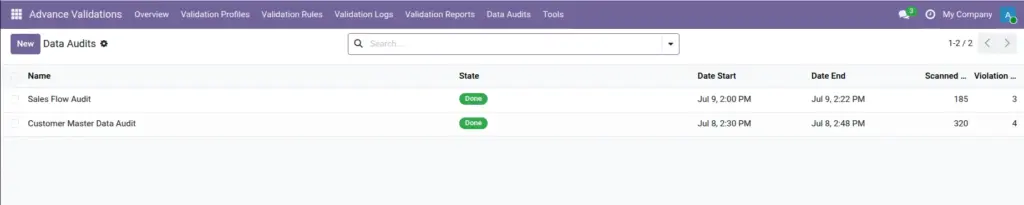
Scan your existing database records to find old data that would fail today’s validation rules.
Overview
Validation rules only check data when someone creates or edits a record. But what about records that already existed before you created the rules? Data Audits scan your existing database to find records that would fail your current rules.
This is essential when rolling out new data quality policies – you can find and fix legacy problems before they cause surprises.
How It Works
You create an audit, choose which rules or profiles to check, set a scan limit, and click Run Audit. Odoo reads existing records from the database and tests each one against the selected rules. Violations appear as lines on the audit form, and you can click through to open and fix each affected record.
You can also schedule daily audits from Settings (disabled by default).
Step-by-Step Guide
- Go to Advance Validations → Data Audits.
- Click New.
- Enter a Name (e.g., “Contact Data Cleanup – July 2026”).
- Optionally filter by Profiles or Rules – leave empty to check all active rules.
- Set the Record Scan Limit – how many records to check per model (start with 500 for a first run).
- Click Save, then click Run Audit.
- Wait for the status to change to Done.
- Review the Violations tab – each line shows the record, rule, severity, and message.
- Click a violation line to open the affected record and fix the data.
- Re-run the audit later to confirm violations are resolved.
Audit Fields
| Field Name | Description | Example |
|---|---|---|
Name |
Title for this audit run |
Pre-Launch Contact Audit |
State |
Current status of the audit |
Done |
Profiles |
Limit audit to rules in these profiles |
Contact Data Quality |
Rules |
Limit audit to specific rules |
Email Required, Phone Length |
Record Scan Limit |
Max records checked per model |
500 |
Date Start |
When the audit began |
15 Jul 2026, 09:00 AM |
Date End |
When the audit finished |
15 Jul 2026, 09:05 AM |
Violation Count |
Total violations found |
47 |
Records Scanned |
Total records checked |
1,200 |
Violation – Rule |
Which rule the record failed |
Email Required |
Violation – Record |
The affected record |
Acme Corp |
Violation – Severity |
Would Block or Warning |
Would Block |
Violation – Message |
What the rule would say |
Please enter an email address. |
Field Explanations
Record Scan Limit
Controls how many records are checked per model. Start with a smaller number (500) for a quick test, then increase for a full scan. Very large databases may take longer with high limits.
State
Draft = not yet run. Running = in progress. Done = completed successfully. Failed = an error occurred during the scan.
Violation – Would Block
The record would be rejected if a user tried to save it today. These are your highest-priority fixes.
Scheduled Audit
In Settings, you can enable a daily cron that automatically runs audits. Useful for ongoing data quality monitoring in large organisations.
Tips
- Run an audit before activating strict block rules – fix legacy data first to avoid blocking users on old records.
- Start with one profile at a time rather than auditing all rules at once.
- Export violation results and assign cleanup tasks to team members.
- Re-run audits monthly to catch data drift.
Common Mistakes
- Activating block rules before auditing – users editing old records will suddenly be blocked.
- Setting scan limit too low – you may miss violations on large datasets.
- Ignoring “Would Warning” violations – these indicate data quality issues even though saves are allowed.
Image