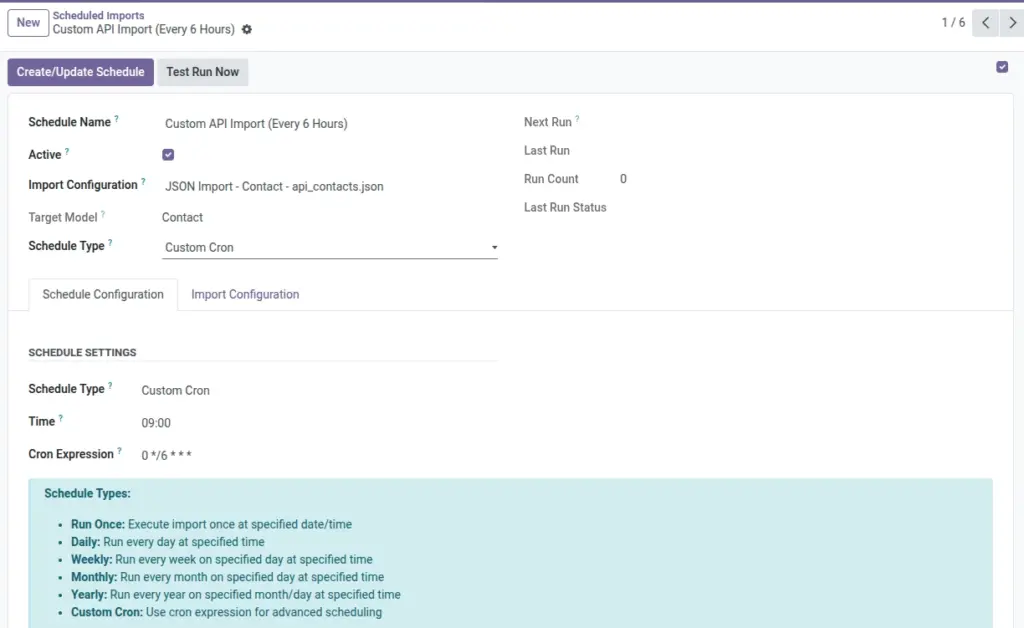
Schedule an import to run automatically (once, daily, weekly, monthly, yearly, or custom timing) using an existing Import Configuration.
Overview
Scheduled Imports help when you need regular updates—like syncing customers every morning or updating products every week—without manual work.
A schedule does not replace your import setup. It simply runs an existing Import Configuration automatically. That means your configuration (file/API, mapping, filters, and import mode) must already be correct before scheduling.
Best use cases
- Daily updates from an API
- Weekly refresh from a shared file link (URL)
- Monthly import of a report file (Excel/CSV)
- One-time “Run Once” migration at a planned date/time
Real-life example
- Every day at 9:00 AM, fetch the latest customer list from an API and update existing contacts in Odoo
How It Works
A schedule points to one Import Configuration (the wizard record you created in “All Imports”). At the scheduled time, Odoo runs that configuration automatically.
You must create the Import Configuration first
Scheduled Imports do not contain mappings themselves. They reuse an existing configuration that already has file/API settings and field mappings.
Step-by-Step Guide
- Create an Import Configuration : In All Imports, set format/source, map fields, and verify preview.
- Open Scheduled Imports : Go to Odoo All import → Scheduled Imports and click Create.
- Choose an Import Configuration : Select the wizard configuration you want to run automatically.
- Pick schedule type and timing : Example: Daily at 9:00, or Weekly on Monday at 7:30.
- Click “Create/Update Schedule” : This activates the schedule so Odoo can run it automatically.
- Test Run Now (optional) : Use Test Run Now to verify the schedule works.
Fields Table
| Field Name | Description | Example |
|---|---|---|
Schedule Name |
A friendly name so you know what this schedule does. |
Daily Customer Import |
Active |
Turn schedule on/off. |
On |
Import Configuration |
The import wizard configuration to run automatically. |
CSV Import – Contacts – customers.csv |
Target Model |
Shown for reference (comes from the selected configuration). |
Contacts |
Schedule Type |
How often the import runs. |
Weekly |
Run On Date/Time |
Used only for “Run Once”. |
2026-04-05 09:00 |
Time |
Time of day for recurring schedules. |
09:30 |
Day of Week |
Used for weekly schedules. |
Monday |
Day of Month |
Used for monthly/yearly schedules. |
1 |
Month |
Used for yearly schedules. |
January |
Cron Expression |
Advanced scheduling (only if you use “Custom Cron”). |
0 9 * * * |
Next Run |
When this schedule will run next. |
2026-04-03 09:00 |
Last Run |
When it last ran. |
2026-04-02 09:00 |
Run Count |
How many times it ran. |
12 |
Last Run Status |
Success, Error, or Pending. |
Success |
Create/Update Schedule (button) |
Applies your schedule settings. |
Click to activate |
Test Run Now (button) |
Runs the import immediately to confirm it works. |
Test run |
Field explanations
This section explains every field shown in the Fields Table above.
- Schedule Name Make it easy to understand at a glance. Include what is imported and how often.
- Active Turn off schedules you don’t need right now without deleting them.
- Import Configuration This is the “recipe” you already built in All Imports. It includes file/API settings, mappings, filters, and import mode settings.
- Target Model Shows where the data goes in Odoo. This comes from the selected configuration.
- Schedule Type Choose how often you want it to run: once, daily, weekly, monthly, yearly, or custom.
- Run On Date/Time Only for “Run Once”. Set the exact date and time.
- Time The time of day for daily/weekly/monthly/yearly schedules.
- Day of Week Only for weekly schedules.
- Day of Month Only for monthly and yearly schedules. If you choose 31, be careful—some months don’t have 31 days.
- Month Only for yearly schedules.
- Cron Expression This is an advanced option. Use it only if you already understand cron timing rules.
- Next Run Helps you confirm the schedule is set correctly.
- Last Run Helps you confirm it actually ran.
- Run Count Useful to see whether a schedule is being used regularly.
- Last Run Status Success means it started and finished; Error means something went wrong; Pending may mean it started and is processing in the background.
- Last Run Message A quick summary. If it shows an error message, open the related Import Logs to troubleshoot.
- Create/Update Schedule (button) Use this after changing schedule settings. It “applies” your changes.
- Test Run Now (button) Best way to confirm everything works before waiting for the scheduled time.
Tips
- Use a stable Unique Field in your Import Configuration for repeat updates.
- Test Run Now after changing API credentials or file URLs.
- Monitor Last Run Status weekly to catch problems early.
Common Mistakes
Mistake: Scheduling an unfinished configuration
If your configuration has no mappings, scheduled runs will fail. Finish mapping and preview first.
Mistake: Wrong time expectation
Confirm your server timezone and business timezone so the schedule runs when you expect.
Image