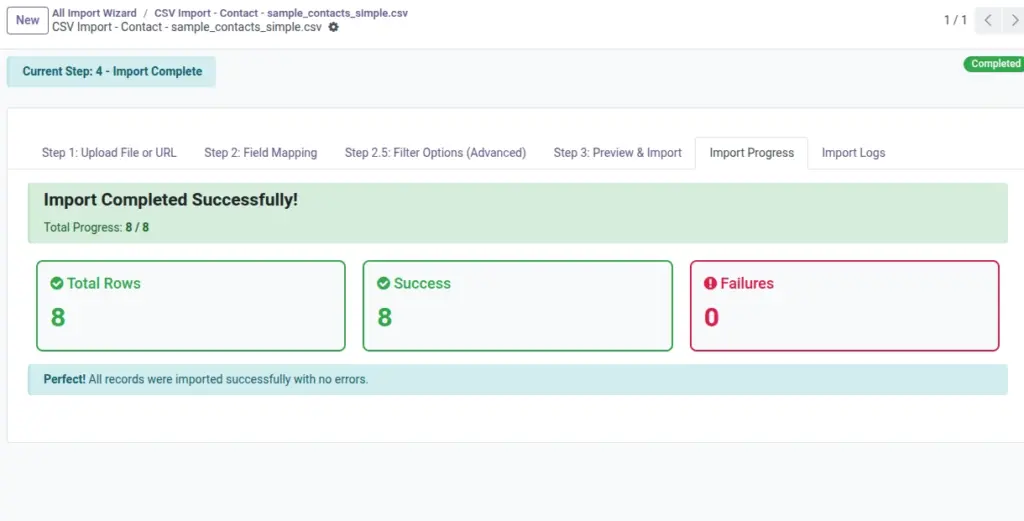
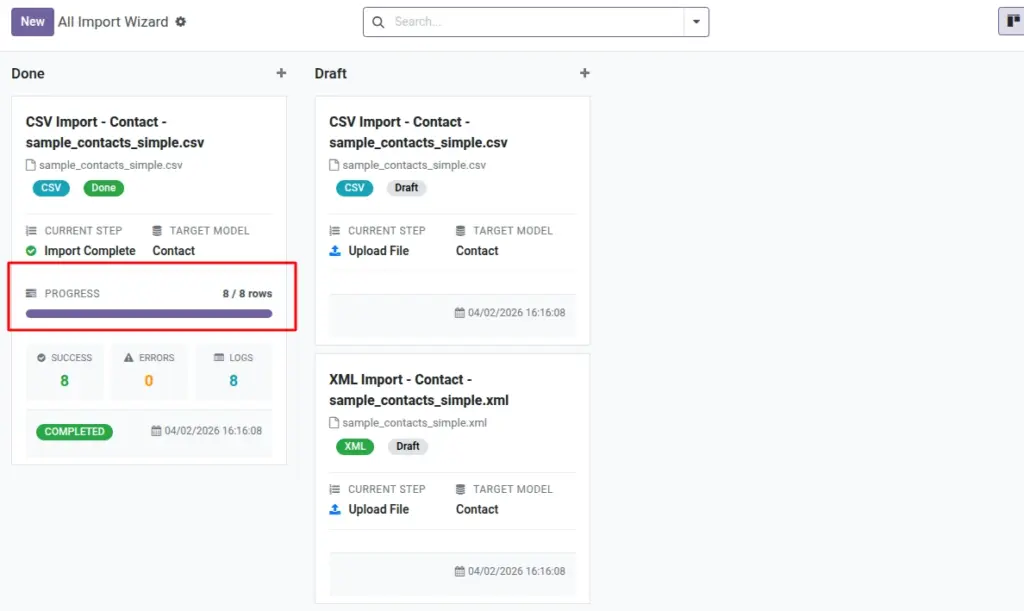
Once you start importing, you can watch progress and control the process using Pause, Resume, Stop, and Refresh.
Overview
Large imports may take time. This wizard shows how many rows are processed and how many succeeded or failed. You can pause the import if you need to review something, or stop it if you realize settings are wrong.
This page is designed for control and confidence. You don’t need to “watch it every second”, but you should check: progress is moving, failures are not growing unexpectedly, and the status matches what you want (Running vs Paused).
- What to do if you see failures increasing
- Open Import Logs and read 2–3 error messages. If it’s the same issue repeated (like date format), it’s usually faster to stop, fix the file, then import again with corrected values.
Stop cannot be undone
- If you stop an import, it cannot be resumed. Use Pause if you only need a short break.
How It Works
The import is processed in batches. The wizard updates counters as it works and writes log entries for each row. Status badges show whether the import is running, paused, stopped, or completed.
Step-by-Step Guide
- Open “Import Progress” This page appears while import is running (and after completion).
- Read the Progress line Example: “120 / 3,250” means 120 rows are processed out of 3,250.
- Use Pause / Resume Pause temporarily. Resume to continue from the same place.
- Use Stop only if necessary Stop ends the import and cannot be resumed.
- Refresh Progress Click Refresh to see the latest numbers and logs.
Fields Table
| Field Name | Description | Example |
|---|---|---|
Import Status |
Shows current state of the import: running, paused, stopped, completed. |
Running |
Progress |
Shows how many rows are processed out of total. |
120 / 3,250 |
Processed Rows |
Number of rows completed so far. |
120 |
Total Rows |
Total number of rows to process. |
3,250 |
Success Count |
How many rows created/updated successfully. |
118 |
Failure Count |
How many rows failed. |
2 |
Importing… (indicator) |
Shows that the process is currently running. |
Importing… |
Refresh Progress (button) |
Reloads the wizard view so you can see updated numbers. |
Click to update |
Pause / Resume / Stop (buttons) |
Controls the running import. |
Pause |
Field explanations
This section explains every field shown in the Fields Table above.
- Import Status Use this to confirm whether your import is still working. If it shows “Paused”, no new rows will be processed until you resume.
- Progress A quick summary of work done. If the first number stops changing for a long time, refresh and check logs.
- Processed Rows How many rows are already finished (success or failure).
- Total Rows The number of rows the wizard plans to process. If you used Filters, this is the filtered count.
- Success Count How many rows were successfully created or updated.
- Failure Count How many rows failed and produced an error log entry. Use Import Logs to see why.
- Importing… (indicator) This appears while the import is running. When the import completes, you’ll see a completion summary.
- Refresh Progress (button) Click this to fetch the latest progress numbers. Helpful when import runs in the background.
- Pause / Resume / Stop (buttons) Pause stops processing temporarily. Resume continues. Stop ends the import and cannot be resumed.
Tips
- Use Pause if you need to verify something quickly.
- Use Stop if you notice you selected the wrong Target Model or wrong Unique Field.
- After completion, go to Import Logs to review any failures.
Common Mistakes
Mistake: Stopping when you only needed to pause
Stop cannot be resumed. If you just need time, use Pause instead.
Mistake: Ignoring failures until the end
If failure count grows quickly, open logs early to identify a repeated issue (like wrong date format).
Image