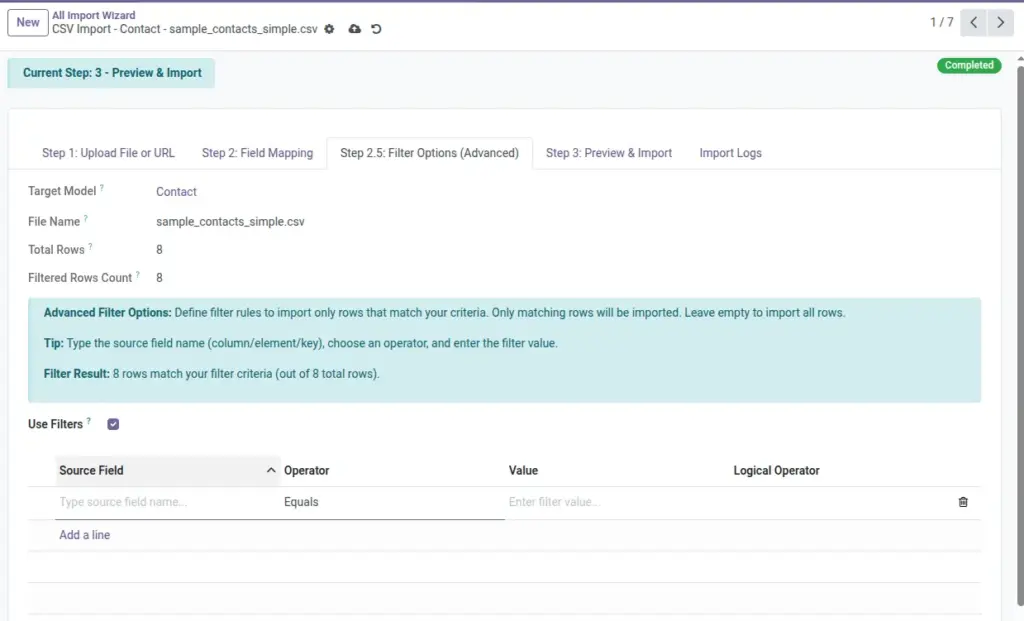
Filters let you import only the rows that match your rules — for example, only “Active” customers, or only rows where Email is not empty.
Overview
Sometimes one file contains mixed data: active + inactive, old + new, or test rows. Filters help you narrow down what gets imported.
Filters are optional, but they are very helpful when you only want part of the file right now. For example, you may want to import only “Active” records, or only rows that have an Email filled in, or only a certain country or category.
When filters are most useful
- Your file includes rows that should not be imported yet
- You want to import in phases (for example by region or by status)
- You want to reduce errors by skipping rows with missing key values
Real-life example
Your file has a column Status with values Active and Inactive. You can import only Active now, and keep Inactive for later.
How It Works
You add one or more filter rules. Each rule says: Source Field + Operator + Value. If you add multiple rules, you can combine them using AND / OR.
What gets imported
When filters are enabled, only matching rows are imported. If your filters match zero rows, the import may finish quickly—but create nothing.
Step-by-Step Guide
- Open “Step 2.5: Filter Options (Advanced)” This page appears after data is loaded.
- Turn on “Use Filters” This enables the filter rules table.
- Add a filter rule Choose a Source Field (or type it), pick an Operator, then enter a Value.
- Combine rules (optional) Use AND when all rules must match; use OR when any rule can match.
- Continue to Preview Generate Preview to see what the first 5 rows look like after filtering.
Example filters
1) Status equals Active
2) Email is_not_empty
Fields Table
| Field Name | Description | Example |
|---|---|---|
Use Filters |
Turns filter rules on/off. |
Yes |
Filter Rules |
The list of filter rules you add. |
2 rules |
Filtered Rows Count |
How many rows match your rules (shown in the wizard). |
124 |
Source Field |
The source field you’re filtering on. |
Status |
Operator |
The condition type (equals, contains, is empty, etc.). |
contains |
Value |
The value to compare with (not needed for “Is Empty”). |
Active |
AND / OR |
How this rule connects to the previous rule (AND/OR). |
AND |
Sequence |
The order of rules (you can drag/reorder in the list). |
10, 20, 30 |
Field explanations (what users should know)
This section explains every field shown in the Fields Table above.
- Use Filters Turn this on to apply filter rules. Turn it off if you want to import everything in your file.
- Filter Rules Each rule is one condition (for example, “Status equals Active”). You can add many rules and combine them.
- Filtered Rows Count This is the number of rows that match your current rules. It’s a quick way to confirm your filters are doing what you expect.
- Source Field This is the name of the column/key you want to check (for example, Status, Email, Country).
- Operator Use Equals when you need an exact match. Use Contains when the value may have extra text. Use Is Empty when you want to find blank rows.
- Value This is what you compare against. Some operators don’t need a value (like “Is Empty”).
- In / Not In tip: these accept a comma-separated list. Example:
Retail, Wholesale, Online. - AND / OR AND is stricter (all rules must match). OR is wider (any rule can match).
- Sequence This is the order rules are applied. You can reorder rules when you want a clearer logical flow (especially when mixing AND/OR).
Tips
- Start with one filter, confirm the row count looks right, then add more rules.
- Use “Is Not Empty” for key fields like Email or Reference before Update mode.
- Keep values consistent: “active” and “Active” are not always the same in real-world files.
Common Mistakes
Mistake: Filters match zero rows
If your value is spelled differently (e.g., “ACTIVE” vs “Active”), you may import nothing.
Mistake: Using OR when you meant AND
OR can import “too many” rows. If you need strict filtering, use AND.
Image