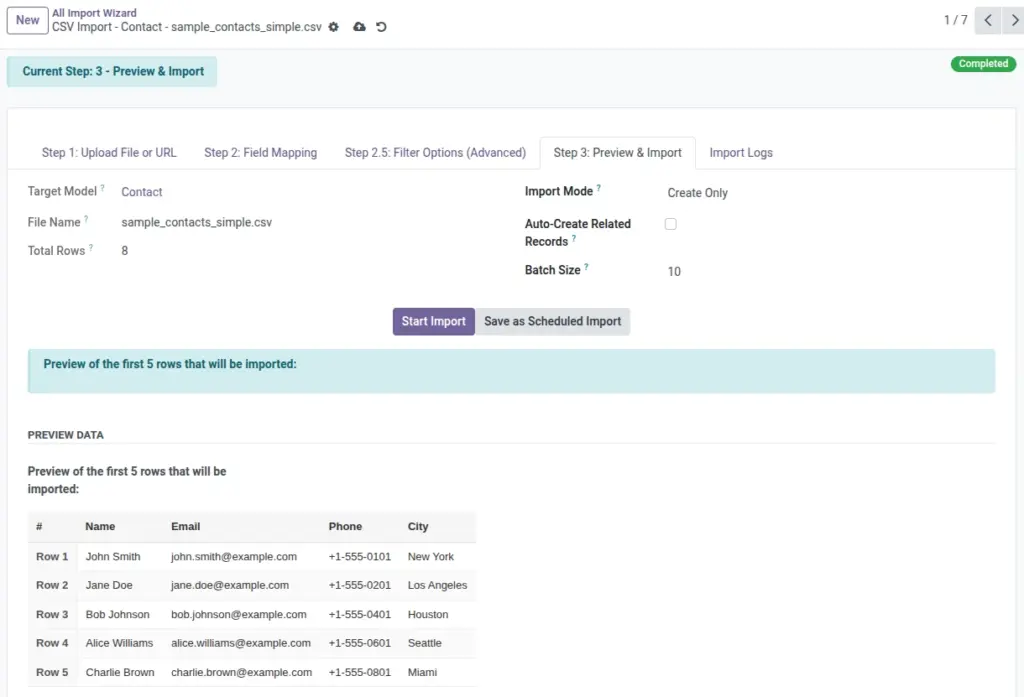
Before you import, the wizard shows a preview of the first 5 rows and asks how you want Odoo to handle records: create new, update existing, or both.
Overview
This step helps you prevent mistakes. You can confirm that values are going into the right fields and choose the safest import mode.
Treat this as your final safety check before data is created or changed in Odoo. If something looks wrong in Preview Data (for example, phone numbers appearing in the email field), go back and fix mapping first.
What you decide on this page
- Whether you are creating new records, updating existing records, or both
- Which field should be used to find the “same record” when updating (Unique Field)
- Whether related records (like Company/Country/Category) can be created automatically
Plain-language meaning
- Create Only = add new records
- Update Only = change existing records (requires a unique match field)
- Create or Update = update when found, otherwise create new (requires a unique match field)
How It Works
The preview is generated from your mappings (and filters if enabled). When you click Start Import, the wizard processes data in batches and writes success/update/error messages to logs.
Why “Unique Field” matters
In Update modes, Odoo needs one field that identifies a record (like Email, Internal Reference, or Code). If it’s missing or duplicates exist, updates may fail or update the wrong record.
Step-by-Step Guide
- Click “Generate Preview” Review the first 5 rows. Confirm mapping looks correct.
- Choose Import Mode Pick Create Only, Update Only, or Create or Update.
- If updating, select “Unique Field” Example: Email for Contacts, Internal Reference for Products.
- Decide about “Auto-Create Related Records” Useful for fields like Company/Country/Category when some values do not exist yet.
- Set Batch Size (optional) Leave default unless you are troubleshooting performance or API limits.
- Start Import Click Start Import to begin processing.
Fields Table
| Field Name | Description | Example |
|---|---|---|
Preview Data |
A preview of the first 5 rows that will be imported. |
Row 1… Row 5 |
Import Mode |
Choose whether to create, update, or do both. |
Create or Update |
Unique Field (for Update) |
The field used to find an existing record when updating. |
|
Auto-Create Related Records |
If a related value is missing (like a Company), create it automatically. |
Enabled |
Batch Size |
How many rows are processed at a time (helps for large files). |
10 |
Total Rows |
How many rows will be imported (after filters, if used). |
3,250 |
File Name |
Confirms which file/URL/API you are importing from. |
customers.xlsx |
Target Model |
Confirms which Odoo screen you are importing into. |
Contacts |
Field explanations
This section explains every field shown in the Fields Table above.
- Preview Data Use this to confirm your mapping is correct. If a value appears under the wrong field, go back to Field Mapping and fix it before importing.
- Import Mode
- Create Only: everything is new.
- Update Only: only change existing records.
- Create or Update: update when found, otherwise create new (best for sync).
- Unique Field (for Update) This must be filled when you use Update modes. Pick a field that is truly unique in your business (like Email for Contacts or Code for Products).
- Auto-Create Related Records If your file contains related values that don’t exist yet (like a new Company), turning this on saves time by creating them automatically. Use carefully to avoid creating “wrong spelling” duplicates.
- Batch Size The import runs in chunks. Smaller batches can be easier to troubleshoot; larger batches may be faster on big imports.
- Total Rows This tells you how many rows will be processed. If you use Filters, this number reflects only the matching rows.
- File Name Helps you avoid importing the wrong file by mistake.
- Target Model Confirms where the records will be created/updated. If this is wrong, stop and correct it before you import.
Tips
- Choose “Create or Update” for repeat imports (with a reliable Unique Field).
- Use Preview as your final check before starting the import.
- Be careful with Auto-Create: fix spelling/casing in your file first to avoid duplicates.
Common Mistakes
Mistake: Using Update mode without a truly unique field
If two records share the same value (for example two contacts with the same email), updates may not behave as you expect.
Mistake: Skipping preview
A small mapping mistake can create hundreds of wrong records. Preview first.
Image