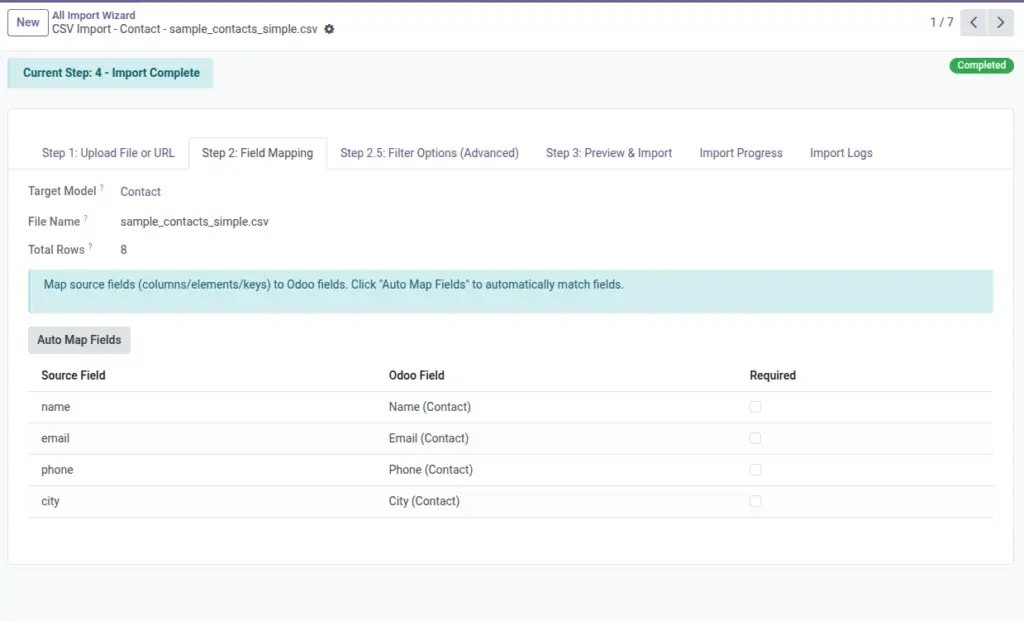
Field mapping is simply telling the system: “This column in my file should fill this field in Odoo.”
Overview
After your file (or URL/API) is loaded, the wizard shows a list of Source Fields (your columns/elements/keys). For each source field, you choose an Odoo Field (where the value will go).
This page is the “make it land in the right place” step. Good mapping means your data shows up correctly in Odoo after import. Bad mapping can create correct-looking records with wrong information inside them.
What you should have before you start mapping
- You selected the correct Target Model (the right Odoo screen)
- Your file has clear column names (or you know what each column means)
- You know which column is your “unique identifier” if you plan to Update later (like Email or Code)
Good mapping example
- Source Field
Email→ Odoo FieldEmail - Source Field
Company→ Odoo FieldCompany
How It Works
The Auto Map Fields button tries to match source names to Odoo field names and labels. You can always override it by selecting a different Odoo field.
Required fields If the target Odoo screen has required fields, you must map them (unless they are filled automatically by Odoo). Otherwise, the preview step may block you with a “missing required field mappings” message.
Step-by-Step Guide
- Open “Step 2: Field Mapping” You’ll see a table of Source Fields and an empty Odoo Field column.
- Click “Auto Map Fields” This fills many mappings automatically (best first step).
- Fix any mismatches For each row, pick the correct Odoo Field from the dropdown.
- Leave unnecessary source fields unmapped If you don’t want a column imported, keep its Odoo Field empty.
- Move on to preview Click Generate Preview (or “Next → Preview”).
Fields Table
| Field Name | Description | Example |
|---|---|---|
Field Mappings |
The list of mapping lines you see in the table (one line per Source Field). |
10 mapping lines |
Source Field |
The Source Field name (from CSV column / XML element / Excel column / JSON key). |
|
Odoo Field |
The Odoo Field where this value should go. |
|
Required |
Shows if the chosen Odoo Field is required in Odoo. |
True |
Source Field List |
Stored list of source fields (used for dropdowns and filters). |
[“Name”,”Email”,”Company”] |
File Name |
Helps you confirm you are mapping the correct file. |
customers.xlsx |
Target Model |
Helps you confirm you are mapping for the correct Odoo screen. |
Contacts |
Field explanations (what users should know)
This section explains every field shown in the Fields Table above.
- Field Mappings This is the mapping table itself. Each line represents one source field (your column/key) and where it should go in Odoo.
- Source Field This is “your data’s name”. For CSV/Excel it’s typically the column header. For JSON it’s usually a key name. For XML it may be an element name (and sometimes attributes).
- Odoo Field This is “where the value goes in Odoo”. If you map a column to the wrong field, the import may succeed but your data will be incorrect, so take a minute to double-check.
- Required If a required field is not mapped (and Odoo cannot fill it automatically), preview/import will complain. Common required fields are things like “Name” on many screens.
- Source Field List This is the list of all detected source fields from your file/API. It helps the wizard show dropdown choices (for example, in filters).
- File Name Confirms which file/URL/API response you are mapping. If the name looks wrong, go back and re-check your upload/URL/API settings.
- Target Model Confirms which Odoo screen you are mapping for. If you change the Target Model, you typically need to re-check mappings because fields are different per screen.
Tips
- Use Auto Map first, then correct the few that need attention.
- Keep your source headers clean: “Phone” is better than “Phone (text)”.
- Many-to-one fields (like Company, Category, Country) usually expect a clear name that already exists in Odoo.
Common Mistakes
Mistake: Mapping one column to the wrong field
Example: mapping “Phone” into “Mobile” by accident. Import may succeed, but your data ends up in the wrong place.
Mistake: Leaving required fields unmapped
Preview may fail with “Missing required field mappings”. Always map the basics like Name/Reference if the screen requires it.
Image