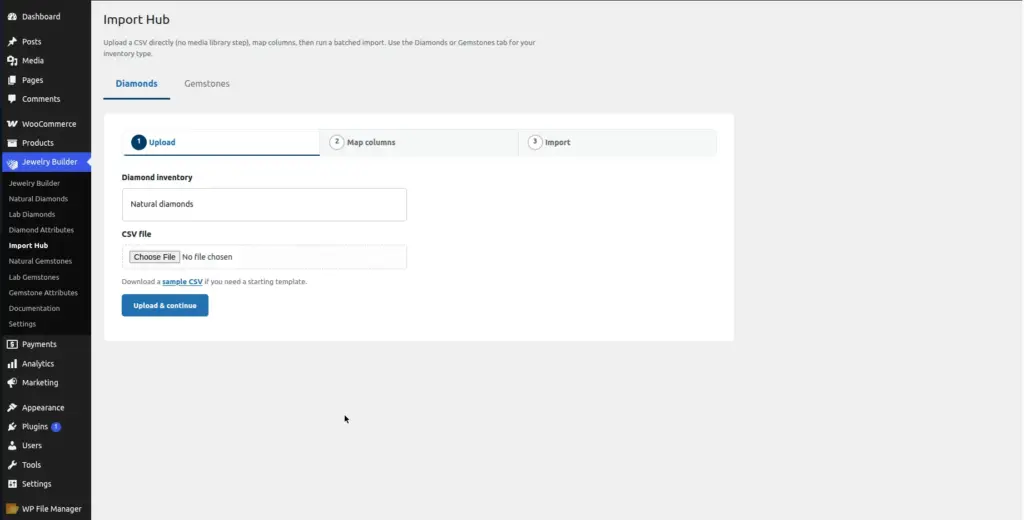
The Import Hub is the fastest way to add large quantities of diamonds and gemstones to your store. Instead of entering records one by one, you prepare a CSV file (a spreadsheet saved in a specific format) and upload it – the plugin imports all rows automatically.
Location: Go to Jewelry Builder → Import Hub in your WordPress admin.
What Is a CSV File?
A CSV (Comma-Separated Values) file is a plain text file that represents a spreadsheet. Each row is one record (one diamond or gemstone). Each column contains one piece of information (Shape, Color, Price, etc.). The first row is the header row – it contains the column names.
You can create and edit CSV files in Microsoft Excel, Google Sheets, or any spreadsheet program. When you are done editing, save the file as “CSV” format (not .xlsx). Most diamond and gemstone suppliers provide their stock lists as CSV files already.
Sample CSV files: The plugin includes ready-to-use sample CSV files. On the Import Hub page, look for the “Sample CSV” download link. Download it, open it in Excel or Google Sheets, and use its column structure as your template.
Required CSV Columns
Your CSV must have a header row. The exact column names don’t have to match perfectly – you will map them during import. However, you must include data for these mandatory fields:
| Mandatory Field | What It Must Contain | Example Value |
|---|---|---|
Diamond ID (or |
A unique identifier for each diamond. No two rows in your CSV should have the same value in this column. |
ND-10045 |
Total Purchase Price (or |
The cost price you paid for each diamond. Must be a number – no currency symbols. |
1850.00 |
All other columns are optional but strongly recommended. Having shape, color, clarity, cut, carat, lab, and certificate number data makes the builder filters useful for customers.
Step-by-Step Import Guide
Prepare Your CSV File
Open your diamond data in a spreadsheet program. Make sure the first row contains column headers (e.g., “diamond_id”, “shape”, “carat”, “color”, etc.). Save the file as CSV format (File → Save As → CSV). Check there are no blank rows at the top of the file.
Go to Jewelry Builder → Import Hub
Click Import Hub in the Jewelry Builder menu. The Import Hub screen has a clean upload area.
Click "Choose CSV File" and Upload Your File
Click the Choose CSV File button. A WordPress Media Library dialog will open. Upload your CSV file by dragging it into the dialog or clicking “Select Files.” Once uploaded, click “Select” to attach it to the import form.
Select the CSV File Type
In the “CSV File Type” dropdown, choose what type of data you are importing:
- Natural Diamonds – for naturally mined diamonds
- Lab Diamonds – for lab-grown diamonds
- Natural Gemstones – for natural colored gemstones
- Lab Gemstones – for lab-created gemstones
Choosing the wrong type will import your data into the wrong catalog. Double-check this before proceeding.
Click "Upload" to See the Column Mapping Screen
After clicking Upload, the system reads your CSV file’s header row and shows a two-column mapping table: the left column shows each database field name, and the right column shows a dropdown where you select which CSV column matches it.
Map Your CSV Columns to Database Fields
For each database field in the left column, select the matching column from your CSV in the right dropdown. If your CSV column name exactly matches the database field name (e.g., your CSV has a column called “shape” and the database field is also “shape”), it will be pre-selected automatically. You only need to manually map columns where the names differ.
Optional: Check "Insert New Records Only"
If you want to import only new diamonds and skip any rows whose Diamond ID already exists in the database, tick the checkbox labeled“Insert new records only – skip rows whose diamond_id already exists (no updates).”
This is useful when you add new stock to an existing import – it prevents accidentally overwriting records you already have.
Click "Import" and Wait
The import processes in batches of 100 rows. A progress bar and progress counter show how many rows have been imported. Do not close the browser tab while the import is running. For large files (1,000+ rows), this may take 1–5 minutes depending on your server speed.
Verify the Import Result
When complete, you will see a success message with the count of imported records. Go to Natural Diamonds (or whichever catalog you imported into) and confirm the records are visible in the table. Use the search bar to spot-check a few specific Diamond IDs from your CSV.
Exporting Diamonds as CSV
To export your existing diamond or gemstone records as a CSV file:
Go to Natural Diamonds (or Lab Diamonds, etc.)
Open the relevant inventory page.
Click the "Export" button
An export progress bar will appear. The export processes all records in your database and generates a CSV file.
Download the file
When the export finishes, a download link appears automatically. The file is named with the export date and type (e.g. natural-diamonds-2025-06-24.csv).
Common Import Problems & Fixes
| Problem | Cause | Fix |
|---|---|---|
“Please select a CSV file type” error |
The File Type dropdown was left on the default empty option |
Select the correct type (Natural Diamonds, Lab Diamonds, etc.) before clicking Upload |
Import stalls or freezes at a certain percentage |
Server timeout on a slow host, or a malformed row in the CSV |
Split the CSV into smaller files (500 rows each) and import them in batches |
Records imported into the wrong catalog |
Wrong CSV File Type was selected |
Delete the incorrectly imported records from the wrong catalog, then re-import with the correct type selected |
Some rows were skipped with no error |
Duplicate Diamond IDs – “Insert new records only” was enabled |
Check your CSV for duplicate IDs. Uncheck “Insert new records only” if you want to update existing records. |
Columns map incorrectly (data in wrong fields) |
CSV column names don’t match and the auto-mapping guessed wrong |
Review the mapping table carefully before clicking Import. Fix any incorrect mappings. |
Best Practices
- Always download the Sample CSV first and use it as your template. This ensures your column names match what the plugin expects.
- Export a backup of your existing data before any large import – in case you need to roll back.
- For files over 1,000 rows, split into batches of 500–1,000 rows to avoid server timeouts.
- Save your CSV in UTF-8 encoding to avoid special character problems (important if your data contains accented characters or symbols).
- Use consistent formatting: prices as plain numbers (no
$sign), carat weights as decimals (1.05not1 05).
Image