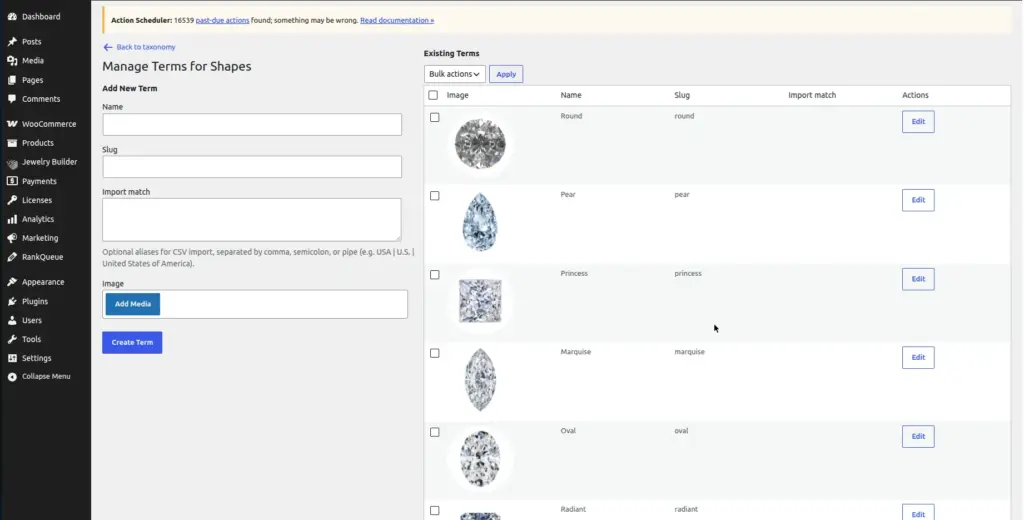
Placeholder images are the visual icons that appear on diamond and gemstone cards in the builder when a stone does not have its own product photograph. Instead of a blank grey box, customers see a clear shape illustration. This chapter explains how to set and customize these images.
Location: Go to Jewelry Builder → Settings → Placeholder Images tab in your WordPress admin. Shape icons are on the Shapes tab.
Why Placeholder Images Matter
Most diamond and gemstone records imported via CSV do not have individual product photographs – the supplier provides data rows without images. Without placeholder images, every card in the builder would show a blank grey box, which looks unprofessional and unhelpful.
Placeholder images solve this by showing the silhouette or illustration of the diamond/gemstone shape instead. When a customer filters for “Oval” diamonds, each result card shows an oval diamond outline. This gives immediate visual context even without real product photos.
The Setup Wizard automatically installs a default set of SVG placeholder images for all shapes when you run Step 2 (“Placeholder & Shapes Images”). You don’t need to upload images manually unless you want to customize them with your own designs.
All Placeholder Image Slots
There is one upload slot for each diamond and gemstone shape. Here are all the shapes you can set a custom placeholder image for:
| Slot Name | Shape It Represents | Notes |
|---|---|---|
Default Image |
Used as a fallback for any stone whose shape does not match any of the specific shape slots below |
Always upload this – it’s the catch-all fallback |
Round Image |
Round brilliant cut – the most common diamond shape |
Classic circular outline |
Pear Image |
Pear / Teardrop shape |
Rounded bottom, pointed top |
Princess Image |
Princess cut – square with sharp corners |
Second most popular shape |
Marquise Image |
Marquise – elongated with pointed ends on both sides |
Also called “navette” |
Oval Image |
Oval brilliant cut |
Elongated round |
Radiant Image |
Radiant cut – rectangle/square with cut corners and brilliant faceting |
– |
Emerald Image |
Emerald cut – rectangular with step-cut facets and cut corners |
Different from an emerald gemstone – this is the cut style |
Heart Image |
Heart shape |
– |
Cushion Image |
Cushion cut – square/rectangle with rounded corners |
– |
Asscher Image |
Asscher cut – square version of emerald cut with very cut corners |
– |
European Cut Image |
Old European cut – precursor to modern round brilliant, slightly different proportions |
– |
Old Miner Image |
Old Mine cut – antique cushion-style cut |
– |
Baguette Image |
Baguette – long narrow rectangle, typically used as side stones |
– |
Briolette Image |
Briolette – teardrop shape with triangular facets all around, no flat table |
Often used for pendants |
Bullets Image |
Bullet shape – tapered rectangle with a pointed end |
– |
Calf Image |
Calf / Calf-cut shape |
– |
Half Moon Image |
Half Moon – semicircle shape used as side stones |
– |
Hexagonal Image |
Hexagonal / six-sided shape |
Popular in modern/geometric jewelry |
Kite Image |
Kite shape – four-sided diamond shape like a kite |
– |
Lozenge Image |
Lozenge – elongated diamond shape, like a rhombus |
– |
Octagonal Image |
Octagonal / eight-sided shape |
– |
Pentagonal Image |
Pentagonal / five-sided shape |
– |
Rose Image |
Rose cut – domed top with flat bottom, triangular facets |
Antique cut style |
Shield Image |
Shield shape – triangular with a flat top edge |
– |
Square Image |
Square shape – strictly square without cut corners |
– |
Square Radiant Image |
Square radiant – square version of the radiant cut |
– |
Star Image |
Star shape |
– |
Tapered Baguette Image |
Tapered baguette – narrower at one end, used as side stones |
– |
Tapered Bullet Image |
Tapered bullet – tapered version of the bullet shape |
– |
Trapezoid Image |
Trapezoid – four-sided shape with parallel top and bottom edges of different lengths |
– |
Triangular Image |
Triangular / Triangle shape |
Also called “trilliant” in some grading systems |
Trilliant Image |
Trilliant – brilliant-cut triangular shape |
– |
Cushion Brilliant Image |
Cushion brilliant – cushion shape with brilliant-style faceting |
– |
How to Upload a Custom Placeholder Image
Go to Jewelry Builder → Settings → Placeholder Images tab
Find the shape slot you want to update.
Click the upload button next to the shape name
The WordPress Media Library will open.
Upload or select your image
You can upload a new image file or select one already in your Media Library. SVG format is recommended for the sharpest results at any screen size. PNG with a transparent background also works well.
Click "Save Changes"
The new image will appear immediately on diamond and gemstone cards for that shape in the builder.
Image Guidelines & Tips
- Use SVG format when possible – SVG images scale perfectly to any size without becoming blurry. This is especially important on high-resolution screens.
- If using PNG, use a transparent background so the image blends cleanly into any card background color.
- Keep images simple and recognizable – the goal is to instantly communicate the shape to the customer, not to be artistic.
- Always upload a Default Image – this is the fallback shown for any stone whose shape name doesn’t match a specific slot.
- The Setup Wizard installs high-quality default SVGs automatically. You only need to upload custom images if you want to match your own brand style.
- Very large image files (over 200KB) can slow down the builder page. Keep placeholder images small – they are just icons, not hero photos.
Image