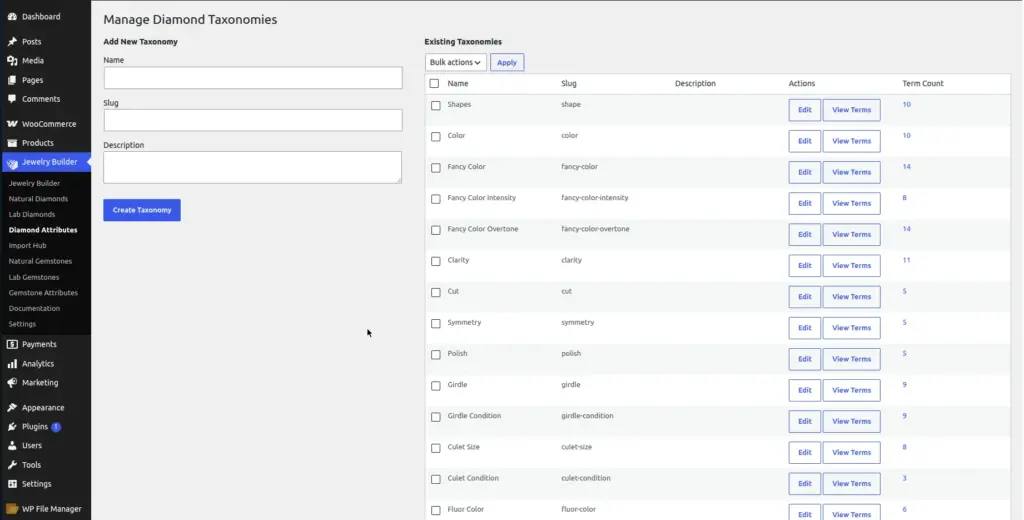
Diamond Attributes control the filter options customers see in the diamond builder – the shapes, cuts, colors, and clarity grades available to select. Each attribute group contains individual terms (values) that you can add, edit, and remove.
Location: Go to Jewelry Builder → Diamond Attributes in your WordPress admin.
What Are Diamond Attributes?
Think of attributes as the categories customers use to narrow down their diamond search. When a customer opens the filter panel in the diamond builder and clicks on “Shape,” they see a list of shape options – Round, Princess, Oval, etc. Those individual options are the attribute terms.
The Diamond Attributes page shows all the attribute groups used by the ring builder for ring products. These are WooCommerce product attributes – they drive both the ring filtering in Step 1 and feed into the diamond filter in Step 2.
The Five Builder Attributes
| Attribute Name | Internal Slug | What It Controls | Protected? |
|---|---|---|---|
Accent Stones |
pa_accent-stones |
Whether the ring setting has side/accent stones and their type. Used in Step 1 ring filter. |
Cannot be deleted |
Metal |
pa_metal |
The metal type of the ring band (Yellow Gold, White Gold, Rose Gold, Platinum). Used in Step 1 ring filter. |
Cannot be deleted |
Setting Carat Weight |
pa_setting-carat-weight |
The total carat weight of the accent stones already in the ring setting. Used in Step 1 ring filter. |
Cannot be deleted |
Shapes |
pa_shapes |
The center stone shape the ring is designed to hold. Connects Step 1 ring choice to Step 2 diamond shape filter. |
Cannot be deleted |
Style |
pa_style |
The overall design style of the ring (Solitaire, Halo, Pave, Three Stone). Used in Step 1 ring filter. |
Cannot be deleted |
These five attributes are protected – the plugin will not allow you to delete them. They are required for the ring builder to function. You can safely add, edit, or remove individual terms within each attribute.
Managing Terms Within Each Attribute
Each attribute contains terms – the individual options customers can choose. For example, the “Metal” attribute contains terms like “14K Yellow Gold,” “14K White Gold,” “18K Rose Gold,” and “Platinum.” You can add new terms, edit existing ones, or delete ones you don’t use.
Go to Jewelry Builder → Diamond Attributes
You will see the list of attribute groups.
Click an Attribute Name to Manage its Terms
For example, click “Metal” to see all metal type terms. The page that opens is the standard WordPress taxonomy terms editor.
Add a New Term
On the left side, fill in the Name (e.g. “22K Gold”) and optionally the Slug (URL-friendly version). If the attribute supports images (like Shapes or Style), you will also see an Image upload field. Click “Add New [Attribute Name]” to save.
Edit an Existing Term
In the terms list on the right, hover over a term name and click “Edit” to change its name, slug, or image.
Add an Image to a Term (for Shapes, Metal, Style)
Some attribute terms display a small preview image in the builder filter. When adding or editing a term, click the image upload area to select an image from the WordPress Media Library. SVG or PNG with transparent background works best.
Attribute Display Style
Each attribute can be displayed to customers in one of several visual styles inside the ring builder filter panel. You can change the display style when editing the attribute itself (not a term within it).
| Display Style | How It Looks | Best For |
|---|---|---|
Swatch |
A small colored circle for each term |
Metal types with color codes (gold = yellow circle, etc.) |
Select |
A standard dropdown menu |
Long lists of options like setting carat weight |
Checkbox |
Checkboxes – customer can pick multiple |
Style (customer may want Solitaire OR Halo) |
Radio |
Radio buttons – customer picks one only |
When only one option makes sense |
Image |
Image thumbnail for each option |
Shapes (shows a Round, Princess shape icon) |
Image box |
Larger image card for each option |
Style with big preview images |
Tips for Diamond Attributes
- Add images to your Shape terms – customers respond much better to visual shape icons than to text labels alone.
- Only add Metal terms that you actually stock. If you don’t sell Platinum rings, there’s no need to have a Platinum metal term.
- Changing a term’s Slug (the URL-friendly version) after it has been assigned to products can break product filtering. If in doubt, don’t change slugs of existing terms.
- After adding new terms, go to your ring products and assign the new terms to the appropriate products so they appear in filters.
Image