


Control how the pricing table looks on your product pages. Change the display format, colors, borders, and text alignment to match your store’s design.
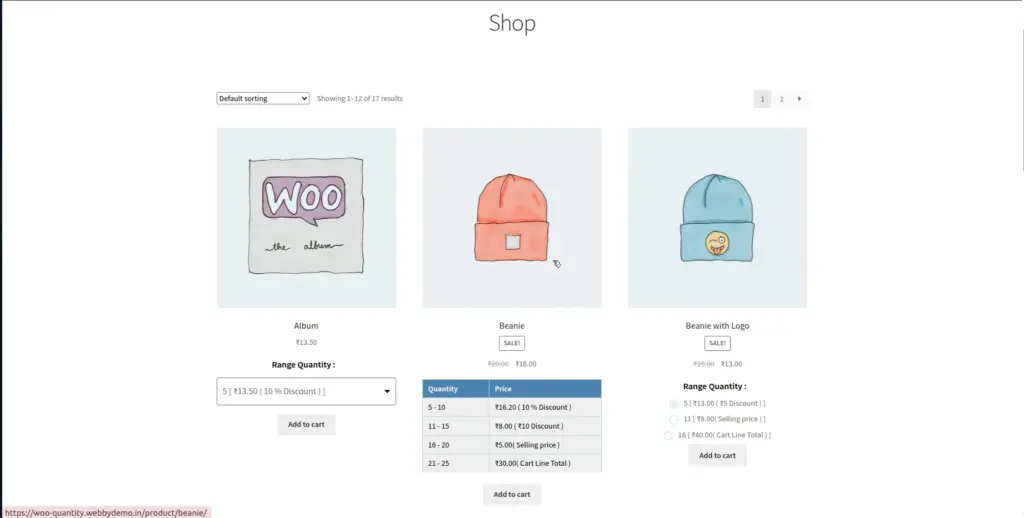
Display Styles – 3 Options
The plugin offers three different ways to display pricing options to your customers. Each suits different store designs and customer behaviors.
Table (Default)
Shows all pricing tiers in a clear table with columns for Quantity and Price. Best for stores where customers need to compare tiers at a glance.
Radio Buttons
Shows each pricing tier as a clickable radio button option. The customer selects their quantity and the price updates. Compact and interactive.
Dropdown
Shows all tiers in a dropdown select menu. Cleanest option for pages where space is limited or you have many pricing tiers.
The Table display is recommended for most stores because it clearly shows all pricing options without requiring the customer to interact first.
Image
Color Customization
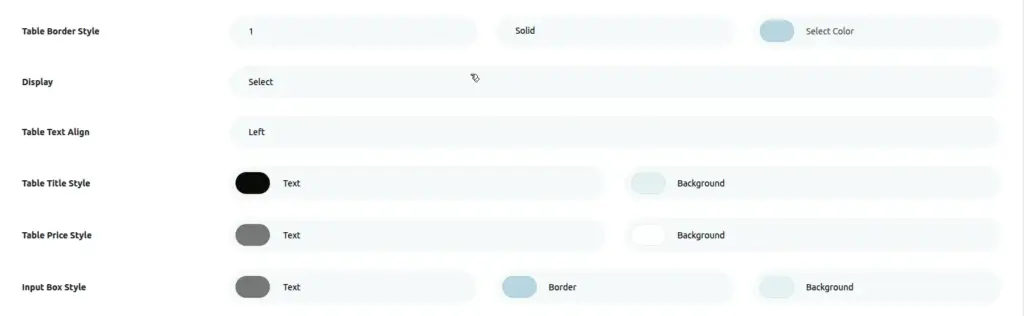
Every color in the pricing table is customizable. Changes made here apply to all products unless overridden at the product level.
| Setting | What It Controls | Recommended |
|---|---|---|
Table Title – Text Color |
Color of text in the header row (“Quantity”, “Price” labels) |
White (#FFFFFF) works well on dark headers |
Table Title – Background Color |
Background color of the header row |
Your store’s primary brand color |
Table Price – Text Color |
Color of text in the pricing rows |
Dark grey for readability |
Table Price – Background Color |
Background of the pricing rows |
Light grey or white |
Input Box – Text Color |
Text color inside the quantity input box |
Dark (#333) |
Input Box – Border Color |
Border color of the quantity input box |
Medium grey (#AAAAAA) |
Input Box – Background Color |
Background of the quantity input box |
White (#FFFFFF) |
Image
Border & Alignment
| Setting | Options | What It Does |
|---|---|---|
Table Border Size |
Number (pixels) |
Thickness of the border around the table. Set to 0 for no border. |
Table Border Style |
Solid / Dashed / Dotted / None |
Visual style of the border line. |
Table Border Color |
Color picker |
Color of the border. Usually matches your header color or a neutral grey. |
Table Text Align |
Left / Center / Right |
How text is aligned inside all table cells. |
Tips for Great-Looking Tables
- Use your store’s main brand color for the Table Title Background – creates a professional, on-brand look.
- White text on a dark header (e.g. dark blue/green header with white text) is the most readable combination.
- A light grey (#F5F5F5) for the pricing row background alternates nicely with white to separate tiers visually.
- Center alignment works best for tables with short content (e.g. “5–9” and “$45”). Left alignment is better for longer descriptions.
- If the table looks too cluttered, switch to the Dropdown display style for a cleaner look.