


Global Rules let you apply a pricing rule to all products in a category or with a specific tag – without editing each product individually. This is a massive time-saver for stores with large catalogues.
Overview
Imagine you have 200 products in your “Electronics” category and you want to give 15% off for any order of 10+. Without Global Rules, you would need to edit 200 products one by one. With Global Rules, you set it once and it applies everywhere in that category automatically.
Global Rules work exactly like product-level pricing rows – same fields, same price types. The difference is where you set them: in the plugin’s Global Rules section rather than on individual product pages.
Where to Find Global Rules
- Go to Quantity Range Pricing in the admin sidebar Click on the “Quantity Range Pricing” menu in your WordPress admin.
- Look for “Category Rules” or “Tag Rules” The plugin has sub-menu items for Category Rules and Tag Rules. Click the one you want to use.
Category Rules
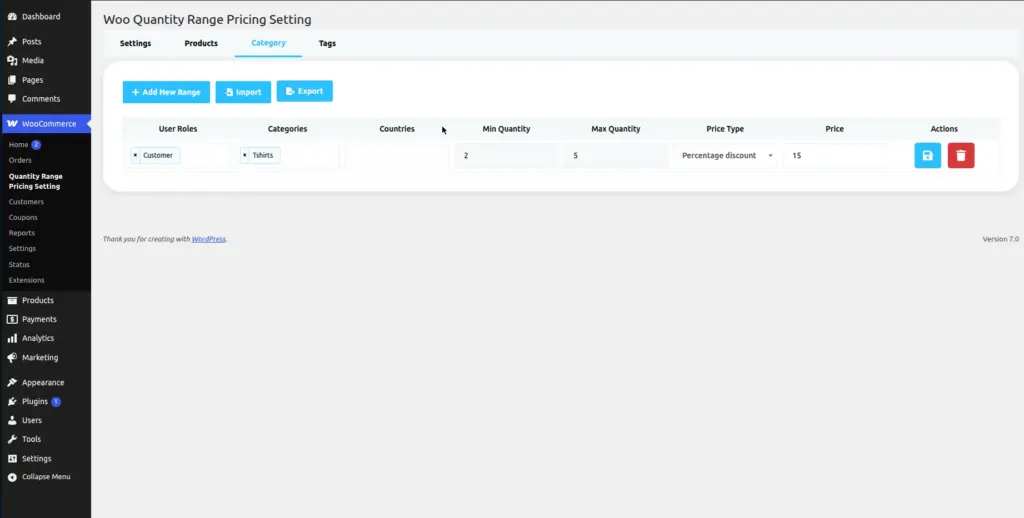
Category Rules apply a pricing rule to every product assigned to a specific WooCommerce product category.
- Open Category Rules Go to Quantity Range Pricing → Category Rules.
- Select a category Choose the product category you want to apply rules to (e.g. “Electronics,” “Clothing,” “Books”).
- Click “Add New Price” Add pricing rows exactly as you would on an individual product – Min Qty, Max Qty, Price Type, and Price.
- Save the rule Click Save. The rule now applies to every product in that category automatically.
Priority: If a product has its own pricing rules set AND belongs to a category with a global rule, the product-level rule takes priority. Category rules are a fallback for products without individual rules.
Image
Tag Rules
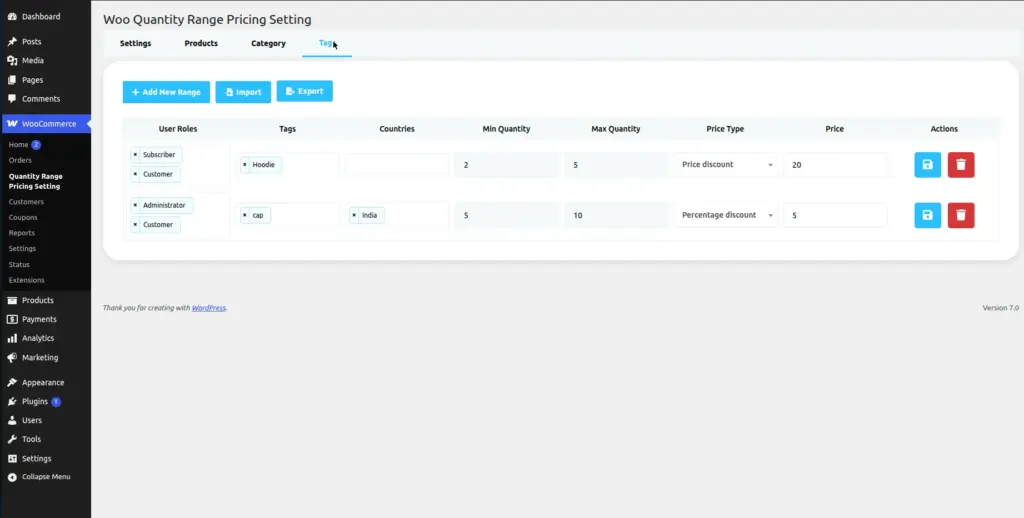
Tag Rules work the same as Category Rules, but they apply to products based on their product tags instead of categories. This is useful for cross-category promotions (e.g. “all products tagged ‘clearance’ get 40% off when buying 5+”).
- Open Tag Rules Go to Quantity Range Pricing → Tag Rules.
- Select a tag Choose the product tag you want to apply rules to.
- Add pricing rows and save Same as Category Rules – add your Min/Max Qty, Price Type, and Price, then save.
Image
Tips
- Use Category Rules to set store-wide defaults for product groups – it saves enormous time on large catalogues.
- Use Tag Rules for temporary promotions – tag a group of products with “summer-sale” and create a rule, then remove the tag when the sale ends.
- Product-level rules always override Global Rules, so you can always make exceptions on specific products.
- You can combine Category Rules with User Role filters – e.g. “All products in ‘Bulk Items’ category, for Wholesale Buyers, 30% off for 50+”.