


This chapter explains the project setup options that control hierarchy, task behavior, and notifications. Follow each sub-point to configure projects correctly before daily work starts.
Parent Project, Child Projects, and Child Project Tasks
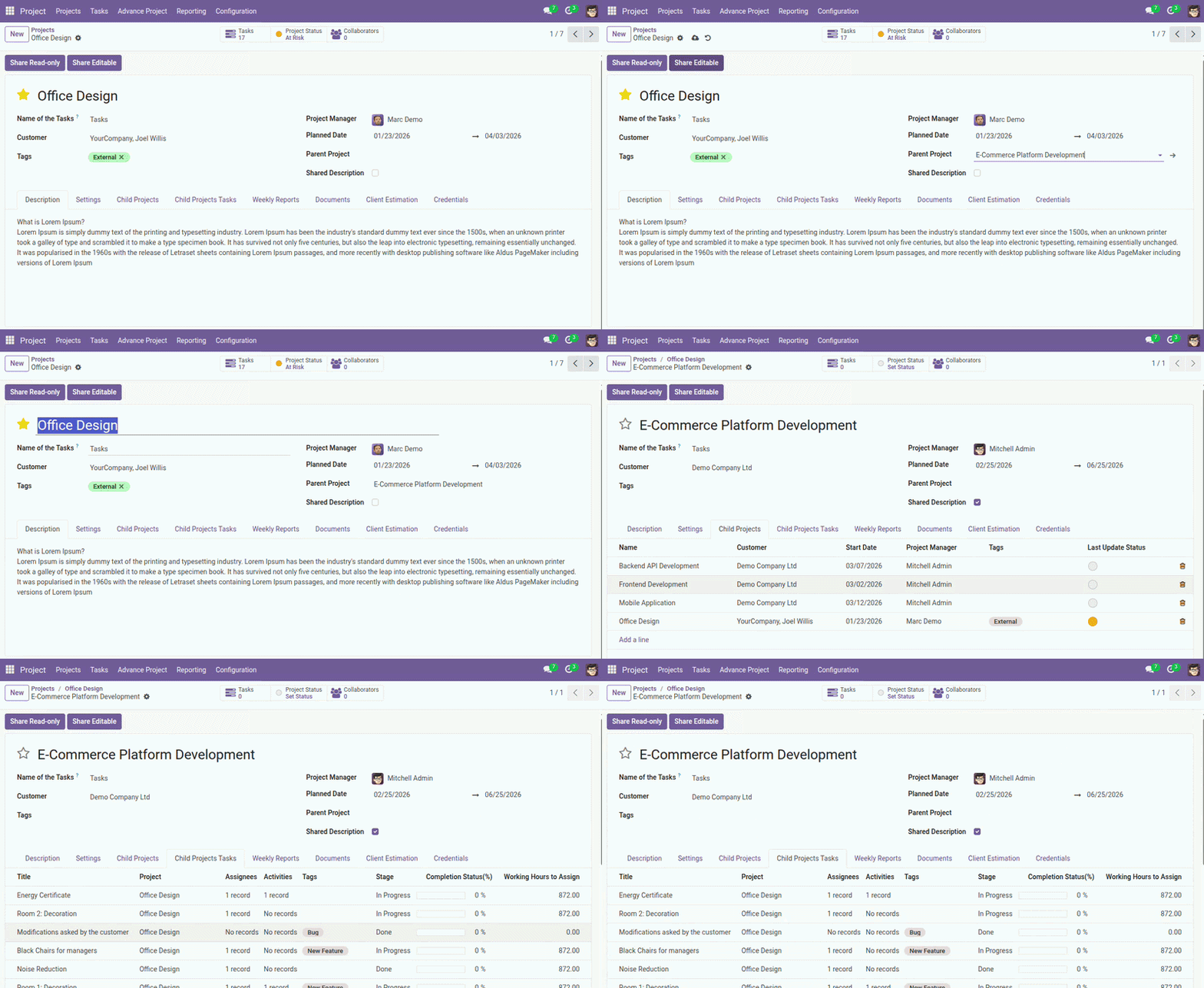
Use this setup to organize one main project and track all related work from child projects in one place.
Why This Is Important
When teams split work across multiple projects, managers usually lose visibility. This setup solves that by showing child projects and their tasks under one parent project dashboard.
Tab-wise Explanation
- Child Projects tab: Shows all projects linked under the current parent project.
- Child Project Tasks tab: Shows tasks from all child projects so managers can review progress from one screen.
Important Fields
| Field Label | Model | Purpose |
|---|---|---|
|
Parent Project |
Project |
Select the parent project for the current project. |
|
Child Projects |
Project |
Shows all child projects linked to the parent. |
|
Child Project Tasks |
Project |
Shows tasks collected from all child projects. |
|
Parent Project |
Task |
Shows parent project context in task list/search. |
Field Explanation
Parent Project (Project):
Sets which main project the current project belongs to.
Child Projects (Project):
Displays all projects linked under the selected parent project.
Child Project Tasks (Project):
Collects and shows tasks from all linked child projects in one place.
Parent Project (Task):
Shows task-level parent project context for filtering and reporting.
How It Works
- Create or open the main (parent) project.
- Open each related child project and set the Parent Project field.
- The parent project will automatically show records in Child Projects and Child Project Tasks tabs.
- Use the child task list for follow-up, priority checks, and progress meetings.
User tip: keep one clear naming standard for child projects (for example: Website – Phase 1, Website – Phase 2) so tab lists stay easy to read.
Project Settings
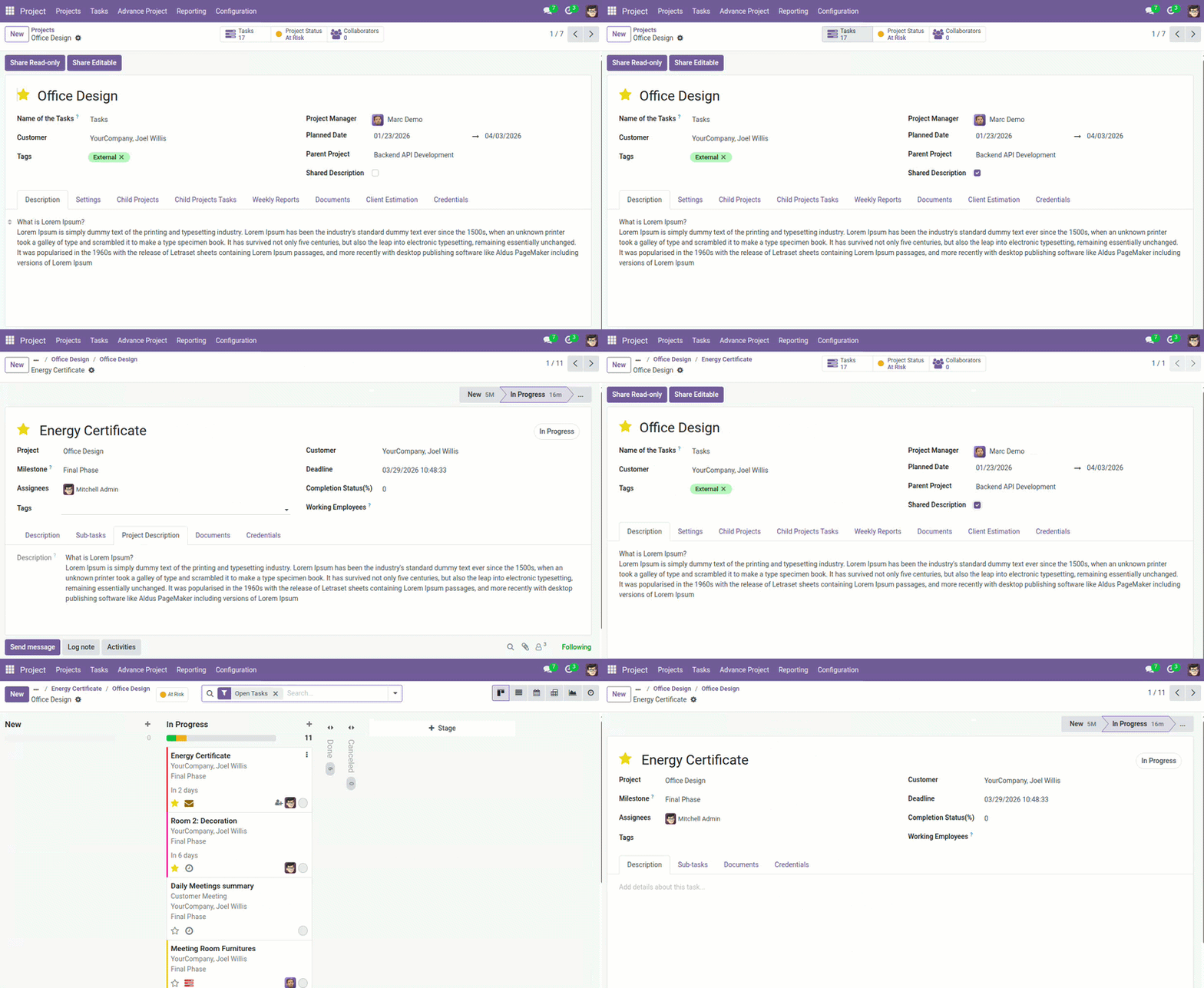
These fields are configured in project form to control sharing and reporting behavior.
When To Configure
Complete these settings when creating a new project. Proper setup here reduces manual updates later and keeps tasks aligned with project rules.
Important Fields
| Field Label | Model | Purpose |
|---|---|---|
|
Shared Description |
Project |
Allow project description visibility in task form. |
|
Parent Project |
Project |
Link project under a parent project. |
|
Last Report Date |
Project |
Track latest weekly report update date. |
Field Explanation
Shared Description (Project):
Allows project description details to be visible from task form.
Parent Project (Project):
Links the project under a higher-level parent project for hierarchy tracking.
Last Report Date (Project):
Stores the most recent weekly report update date.
How It Works
- Manager enables settings directly on project form.
- Tasks inherit behavior from project-level setup.
- System updates dependent views and computed fields.
Recommended practice: review these settings before assigning tasks to users, so all assignees get the correct project context from day one.
Notification Setting
Global setting in configuration to control whether task change notifications are sent.
What Users Experience
When enabled, users receive alerts when important task updates happen. This helps teams react quickly without opening each project repeatedly.
Important Fields
| Field Label | Model | Purpose |
|---|---|---|
|
Enable Task Notification |
Settings |
Enable or disable task update notifications globally. |
Field Explanation
Enable Task Notification (Settings):
Controls whether users receive notifications for major task updates across the system.
System behavior: when enabled, stage/state/assignee changes trigger Discuss and UI notifications to related users.
Suggested Flow
- Enable the notification option in settings.
- Make a sample task update (stage, assignee, or status).
- Confirm that related users receive notification messages.