


This chapter covers every screen and action in the Quantity Pricing Admin UI – where to go, what each field means, and how to create, edit, and delete rules.
Where to manage rules
The plugin adds three locations in Medusa Admin:
| Location | Path | Best for |
|---|---|---|
Global settings |
Settings → Extensions → Quantity Pricing |
View all rules, audit store-wide |
Product widget |
Products → [product] → Quantity pricing |
Daily tier setup (recommended) |
Store widget
|
Settings → Store |
Quick rule count + link to settings |
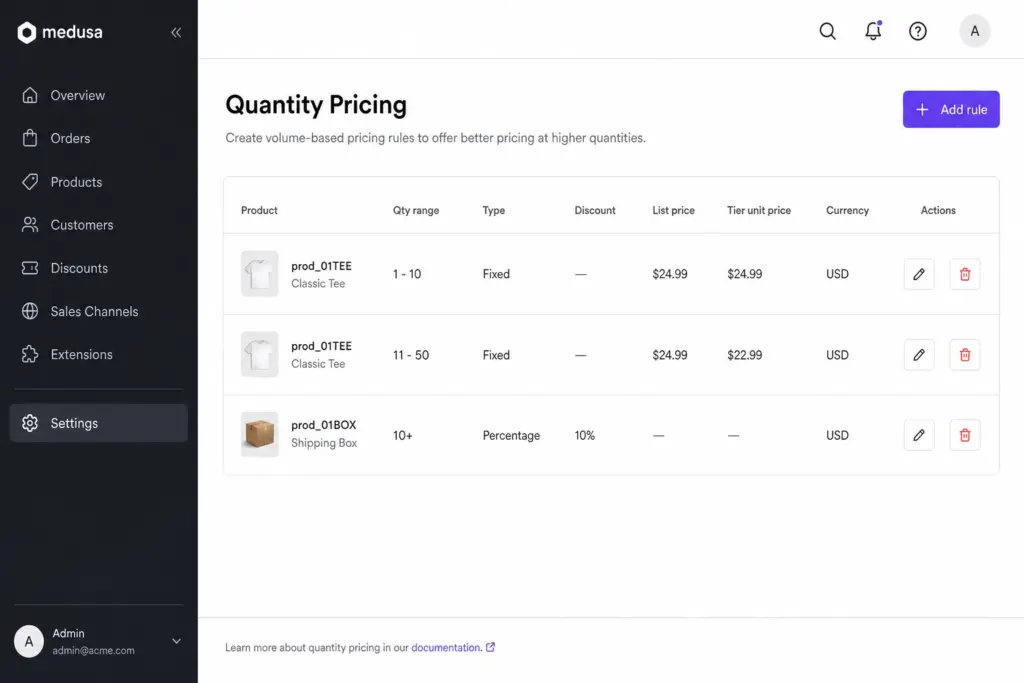
Global settings page
Path: Settings → Extensions → Quantity Pricing
Page header
- Title: Quantity pricing
- Subtitle: Explains volume tiers (e.g. 1–10 → $100, 11–50 → $90, 51+ → $80)
Actions
| Button | Action |
|---|---|
Add rule |
Opens drawer to create a new tier |
Edit (pencil) |
Opens drawer with rule pre-filled |
Delete (trash) |
Confirms, then permanently removes the rule |
Rules table columns
| Column | Description |
|---|---|
Product |
Product ID (and variant label if variant-specific) |
Qty range |
e.g. |
Type |
Fixed price, Percentage discount, or Fixed discount |
Discount |
% or amount off (— for fixed price tiers) |
List price |
Catalog/reference price for discount calculation |
Tier unit price |
What the customer pays per unit |
Currency |
ISO code (USD, INR, etc.) |
Actions |
Edit, Delete |
Tip For large catalogs, use the product page widget – it filters rules automatically and pre-fills the product ID.
Product widget
Path: Products → [product] → scroll to Quantity pricing
- Product ID is pre-filled – no typing required
- Variants load automatically for the variant dropdown
- Button label is Add tier (instead of Add rule)
- Shows Variant column when the product has variants
Store widget
Path: Settings → Store
Shows total rule count across your catalog and a Manage pricing link to the global settings page.
Creating a rule
- Click Add rule (global) or Add tier (product page)
- Fill in the form fields
- Click Add rule or Save changes
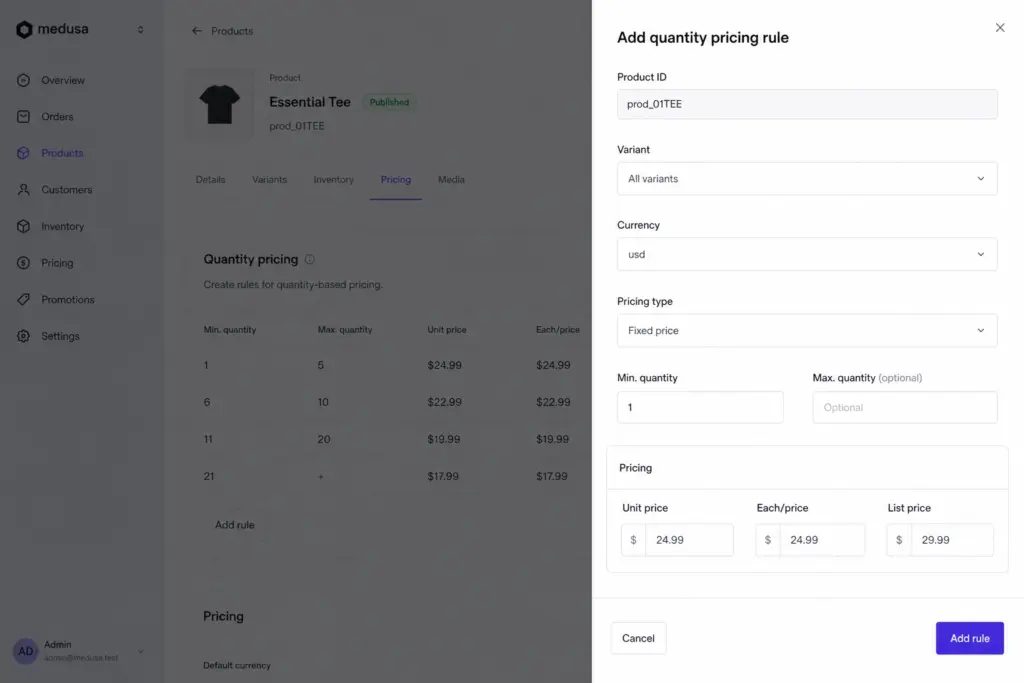
Field reference
| Field | Required | Description | Example |
|---|---|---|---|
Product ID |
Yes |
Medusa product ID |
|
Variant |
No |
All variants or one specific variant |
All variants / Large · SKU-L |
Currency |
Yes |
ISO 4217 code |
|
Pricing type |
Yes |
How price is calculated |
Fixed / Percentage / Fixed discount |
Min qty |
Yes |
Minimum quantity for tier |
|
Max qty |
No |
Upper bound; empty = open-ended |
|
Price |
Yes |
Unit price, %, or amount off |
|
List price (reference) |
Sometimes |
Sometimes |
120.00 |
Pricing types explained
| Type | You enter | Customer pays |
|---|---|---|
Fixed price |
Exact unit price |
That price |
Percentage discount |
% off catalog (max 100) |
List price × (1 − %/100) |
Fixed discount |
Amount off per unit |
List price − amount |
Pricing grid
The form shows three columns when a product ID is entered:
| Column | Meaning |
|---|---|
Unit price / Discount |
Your input |
Each/Price |
Calculated unit price (read-only) |
List price |
From Medusa catalog (read-only) |
Note For discount tiers, you need a list price from Medusa variant pricing or the List price (reference) field. For fixed price tiers, no catalog price is required.
Example: three tiers on one product
Create three separate rules for the same product and currency:
| Min | Max | Type | Price |
|---|---|---|---|
1 |
10 |
fixed |
100 |
11 |
50 |
fixed |
90 |
51 |
*(empty)* |
fixed |
80 |
Editing rules
- Click the pencil icon on any row
- Change fields in the drawer
- Click Save changes
Changes take effect immediately – there is no draft mode.
Warning Test pricing changes on a staging store before editing production rules.
Deleting rules
- Click the trash icon
- Confirm in the dialog (shows tier summary)
- Rule is permanently removed
When you delete a product in Medusa, all its quantity pricing rules are removed automatically.
There is no archive or deactivate – delete to disable, create again to enable.
Products without variants
If a product has no variants, the form shows a notice:
- Use Fixed price for simple volume pricing, or
- Enter List price (reference) for discount tiers
Admin tips
- Use the product page widget to avoid typing product IDs
- Keep tiers non-overlapping – overlapping ranges use highest
min_qty - Create separate rules per currency for multi-currency stores
- Customer group and region scoping is available via Admin API (see Advanced chapter)