Create, confirm, and manage guest stays from draft through checkout.
Overview
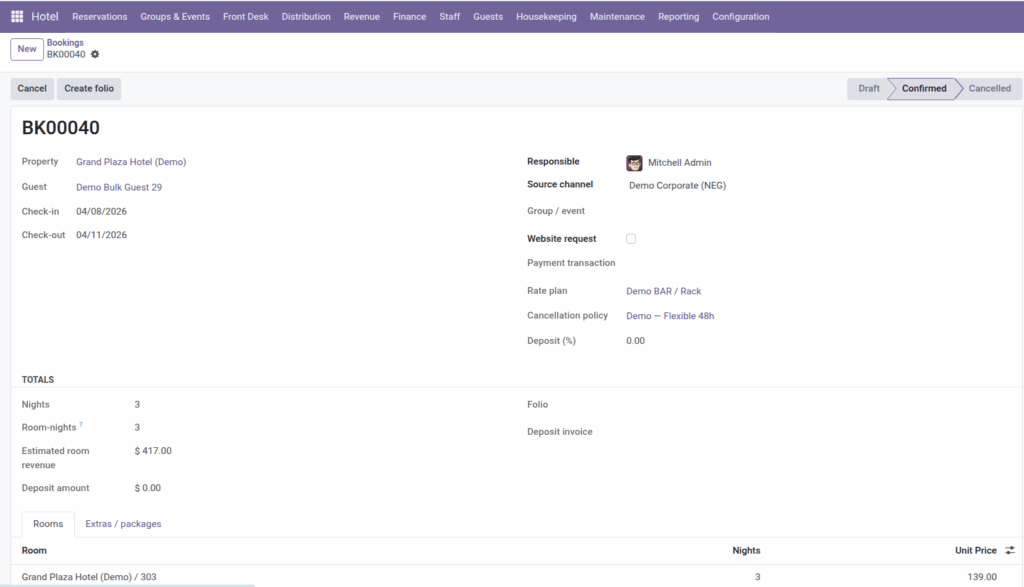
A booking is the central record for a guest stay. It holds the guest, check-in and check-out dates, assigned rooms, rate plan, channel source, optional group event, extras, and financial details. Bookings move through three states: Draft, Confirmed, and Cancelled.
Access bookings under Hotel → Reservations → Bookings. Use Booking Calendar for a visual timeline of stays.
How It Works
When you create a booking you choose the property and guest, set dates, and add one or more room lines – each line picks a specific room and a nightly unit price. The system checks that rooms are not double-booked, blocked by a hold, or out of order before you confirm.
Optional fields enrich the reservation:
- Rate plan – baseline pricing; use Apply rates to fill line prices.
- Source channel – where the booking came from (website, walk-in, OTA).
- Group / event – links the stay to a group block.
- Extras / packages – add-ons like parking or breakfast with quantity and price.
- Cancellation policy and Deposit (%) – see Cancellations & Deposits.
Confirming locks the reservation in place. Cancelling frees the rooms for other guests. Distribution rules (minimum stay, stop sale) are checked automatically when you save or confirm.
Step-by-Step Guide
- Open Hotel → Reservations → Bookings and click New.
- Select the property and guest (or create a guest from the dropdown).
- Enter check-in and check-out dates. The system calculates nights automatically.
- Choose a rate plan, cancellation policy, source channel, and group event if applicable.
- On the Rooms tab, add a line for each room. Only available rooms appear in the list.
- Click Apply rates to booking to fill unit prices from the rate plan and BAR overrides.
- Add any extras on the extras tab (description, quantity, unit price).
- Review estimated room revenue and deposit amount, then click Confirm.
- To cancel, open the booking and click Cancel. Use Reset to draft if you need to edit a cancelled booking.
- Open Booking Calendar to see confirmed stays on a timeline.
Fields Table
| Field Name | Description | Example |
|---|---|---|
Reference |
Auto-generated booking number |
HB/2026/00128 |
Property |
Hotel where the stay takes place |
Grand Plaza Hotel |
Guest |
Contact record for the staying guest |
Jane Smith |
Check-in |
Arrival date (first night) |
15 Jun 2026 |
Check-out |
Departure date (last night is the day before) |
18 Jun 2026 |
Status |
Draft, Confirmed, or Cancelled |
Confirmed |
Rate plan |
Price list used for this booking |
Best Available Rate |
Source channel |
How the guest found or booked |
Booking.com |
Group / event |
Linked group block if applicable |
ACME Annual Summit |
Room (line) |
Specific room assigned on a line |
301 / Grand Plaza |
Unit Price (line) |
Nightly rate for that room line |
149.00 |
Extra – Description |
Label for an add-on charge |
Airport transfer |
Extra – Quantity |
How many units of the extra |
1 |
Extra – Unit price |
Price per extra unit |
45.00 |
Nights |
Number of nights in the stay |
3 |
Estimated room revenue |
Total room charges plus extras |
492.00 |
Field Explanations
Reference
System-assigned booking ID. Use it on the phone with guests and in reports.
Property
Which hotel the guest stays at. Drives available rooms, rate plans, and policies.
Guest
The main contact on the reservation. Should exist under Guest Profiles or be created inline.
Check-in
First night of the stay. Guest typically arrives on this calendar date.
Check-out
Day the guest leaves; not counted as an occupied night. A Mon-Wed stay has check-in Monday, check-out Wednesday, 2 nights.
Status
- Draft – work in progress.
- Confirmed – committed reservation.
- Cancelled – voided; rooms released.
Rate plan
Determines baseline nightly prices when you apply rates. Must belong to the same property.
Source channel
Tracks where business comes from for channel mix reports. Set up channels under Distribution.
Group / event
Connects individual bookings to a group contract for pickup tracking and rooming lists.
Room (line)
Each line is one physical room for the full stay. The same room cannot appear twice on one booking.
Unit Price (line)
Average nightly rate for that room after applying plan + BAR. Multiplied by nights for room revenue.
Extra – Description
What you are charging for beyond room rent – spa, minibar package, pet fee.
Extra – Quantity
Number of units. Two airport transfers = quantity 2.
Extra – Unit price
Price per unit before quantity. Subtotal = quantity × unit price.
Nights
Computed from check-in and check-out. Drives room charge multiplication.
Estimated room revenue
Sum of (each room line unit price × nights) plus all extra subtotals. Used for deposits and reporting.
Tips
- Only rooms that are free for the dates – and not on hold or out of order – appear when picking a room line.
- Use the calendar view to spot gaps and avoid assigning the same room to overlapping stays.
- After confirming, create a folio from the booking to start billing – see Folios & Invoicing.
Common Mistakes
- Confirming with out-of-order room Maintenance must finish or cancel before you confirm a booking on that room.
- Overlapping dates The system blocks two confirmed bookings on the same room for overlapping nights.
- Ignoring minimum stay rules Active booking restrictions may prevent saving or confirming short stays during peak periods.
Image