Summarize This Article With AI
Key outcomes:
- Reduce order mistakes and food waste.
- Cut order entry time by letting staff tap prebuilt predefined notes and order notes for accuracy and speed.
- Improve accessibility and compliance with clear dietary/allergy tags.
- Seamless admin control: manage pos notes and templates centrally.
Why choose POS Quick Notes for Odoo POS?
If your staff types the same instructions repeatedly (no onions, extra sauce, gluten-free), you’re losing time and inviting mistakes. The pos_quicknote module turns repetitive typing into one-tap selections via note templates and chips—designed specifically for point_of_sale workflows in Odoo and restaurants. The order note feature, accessible through a dedicated note button, allows staff to quickly add pos order notes or line notes to orders, streamlining note entry and improving accuracy.
Benefits at a glance:
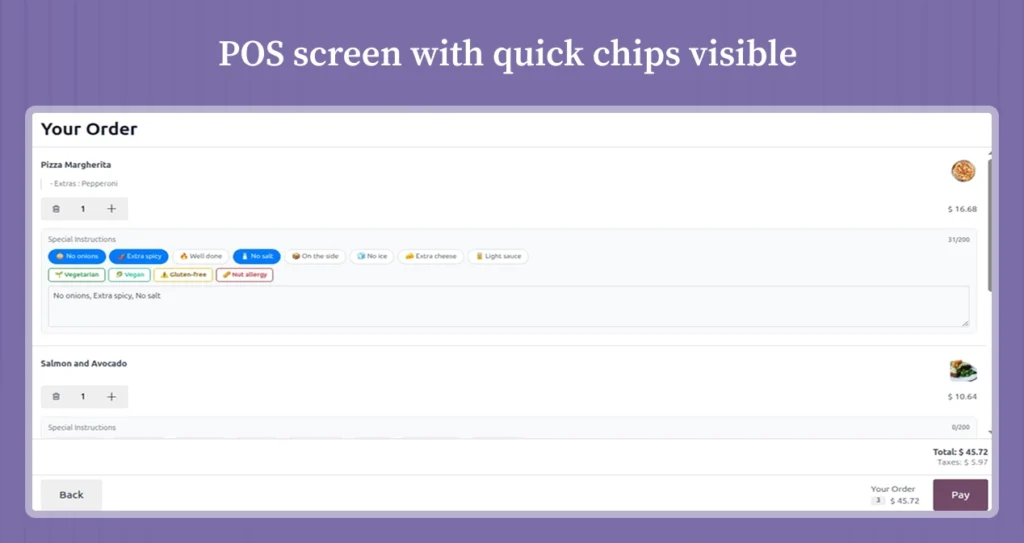
- Faster orders: Predefined note chips and the smart button for managing and adding pos order notes reduce typing and delays.
- Safer service: Dietary and allergy tags reduce risk of incorrect orders.
- Consistent communication: Standardized templates keep kitchen and floor staff aligned.
- Developer-friendly: Includes the technical name pos_quicknote for easy lookup and integration.
Features — What the module does
Core features of POS Quick Notes (pos_quicknote):
- Add and Manage POS Order Notes & Order Line Notes: Quickly add pos order notes and pos order line notes to individual order lines and orders. These notes are stored and can be printed on receipts, displayed in the POS interface, and managed in the backend.
- Internal Notes & Add Internal Notes: Add internal notes for orders and order lines, with options to display internal notes on receipts and in the backend for better record-keeping and communication.
- Predefined Notes Option: Create, save, apply, and manage predefined notes for quick access. Users can select from predefined notes to streamline note entry and ensure consistency.
- Print Notes on Receipts: Notes can be printed on receipts and displayed in the POS interface and backend, providing clear communication to customers and staff.
- Note Button, Smart Button, and Action Buttons: Use dedicated note buttons, smart buttons, and action buttons (click, press) to quickly add, view, and manage pos notes within the POS workflow.
- Module Helps Sellers and Users: The module helps sellers, users, and pos users to add, view, and manage pos order notes and sale notes efficiently, improving order accuracy and customer service.
- Create New Notes & Store POS Order Notes: Easily create new notes, store pos order notes securely, and provide important information to customers or staff as needed.
- Enter Numbers, Settings, and Quantities for Order Lines: Enter numbers and settings for order lines, with added notes saved and displayed for each order line, supporting accurate order management.
- View, Click, and Manage Notes in Backend and POS Interface: Users can view, click, and manage notes from both the backend and the POS interface, ensuring flexibility and control over note management.
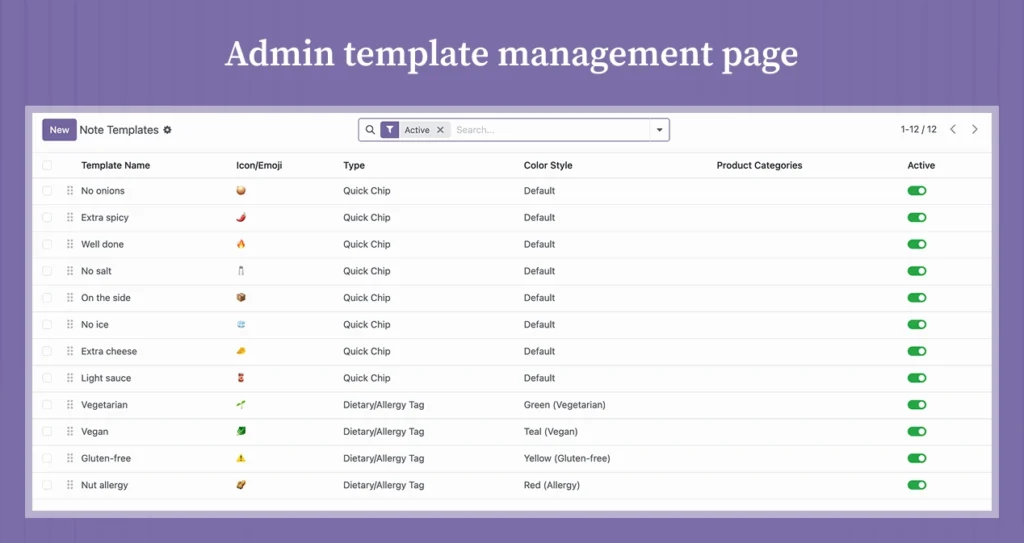
- Predefined Note Templates: Create, edit, and categorize reusable templates (e.g., “No onion”, “Extra spicy”, “Allergy: Nuts”) for different kinds of orders.
- Quick Chips (tap-to-add): Add notes to an order with one tap — ideal for fast service and kiosks.
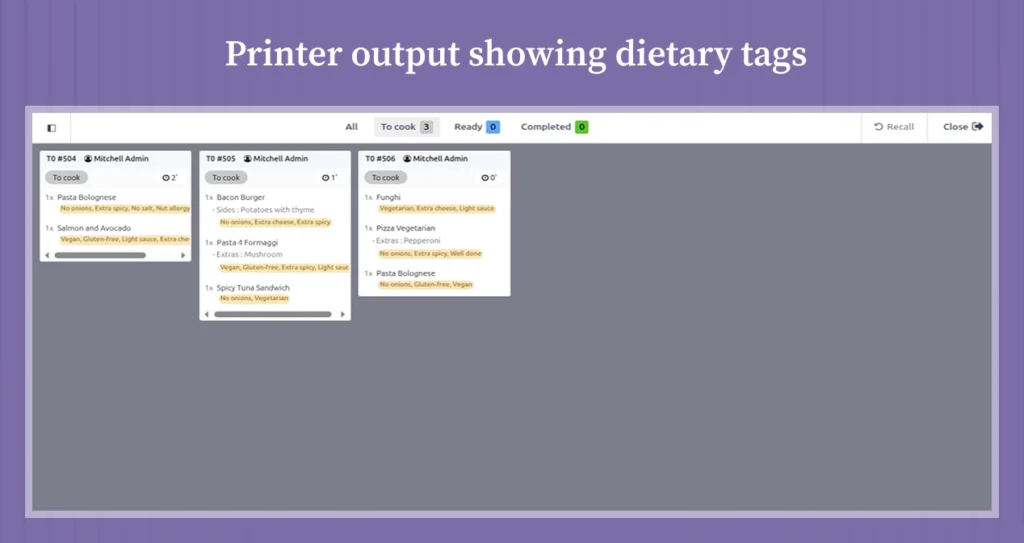
- Dietary & Allergy Tags: Color-coded tags that display prominently on kitchen printers and POS screens to highlight important order details.
- Character-limited Textarea: Prevent overly long notes; keep orders concise and actionable.
- Category Filtering & Admin Controls: Filter templates by category (drinks, mains, desserts) and control who can edit templates.
- POS & Restaurant Compatibility: Built for point_of_sale and pos_restaurant workflows in Odoo 19.
- Lightweight & Performant: The app works perfectly with minimal performance overhead so your POS stays snappy during peak hours.
- Easy Installation: Install pos_quicknote via the Odoo Apps store and enable in POS configuration.
Use cases — Where POS Customer Quick Notes shines
- Full-service restaurants: Waitstaff add Odoo POS dietary tag module and special requests quickly to avoid kitchen mistakes. Sale notes and order notes can be added to individual order lines, ensuring each item has clear instructions for the kitchen.
- Fast-casual chains: Speed up throughput at peak times with tap-to-add note chips.
- Cafés and bakeries: Special instructions like “no whipped cream” or “cut in half” become one-tap options, and staff can add order notes to each order line for precise customization.
- Self-order kiosks: Reduce typing for customers and speed checkout with templates.
- Dark kitchens / ghost kitchens: Sellers can add order notes to order lines for better communication, ensuring clear, standardized notes for remote kitchens shipping accurate meals.
How POS Quick Notes improves operations
While results vary by business, teams report:
- Fewer order errors — customers get the modifications they requested.
- Faster order entry — staff tap templates instead of typing each time.
- Better kitchen compliance — clear dietary tags reduce rework, with notes managed in the backend and both printed and displayed on the receipt for accurate communication.
Screenshots & demo
Simple installation — get started in 5 steps
- Purchase or download pos_quicknote from the Odoo Apps store.
- Upload the module to your Odoo 19 POS note templates instance or install directly from Apps.
- Activate the module and restart your Odoo server if required.
- Go to Point of Sale → Configuration → POS Quick Notes where you have the option to configure settings for notes, enter predefined note templates, and manage tags.
- Open your POS session, enable the new quick notes layout, and apply the new note templates to a sample order to test their functionality.
Tip: For multi-company setups, create templates per company or use global templates if you want consistency across locations.
Compatibility & requirements
- Odoo versions: Compatible with Odoo POS version 19, as well as earlier versions and compatible branches indicated on the app listing.
- Dependencies: point_of_sale, pos_restaurant (for full restaurant features).
- License: LGPL-3 (check Odoo Apps listing for license updates).
- Supported devices: Desktop POS, tablet-based POS, and kiosk setups.
Technical snapshot
- Module technical name: pos_quicknote — include this in manifests and when searching on the Apps store.
- Extensibility: The module helps developers extend both backend and pos interface features, including the management and configuration of predefined notes. You can add custom fields to templates, connect with third-party print modules, and enhance how notes are created, edited, and viewed from the backend or used in the POS interface.
- Performance: Minimal front-end footprint; chips are rendered client-side for snappy UI.
- Customization: Admin UI allows template CRUD and category filters; developers can add custom categories, manage predefined notes, and integrate with order workflows.
Pricing & purchase options
We offer flexible licensing that fits single restaurants, multi-location chains, and enterprise deployments. Typical options:
- Single location license — ideal for single restaurants or cafes.
- Multi-location bundle — centralized admin + per-location activation.
- Enterprise / custom — custom integrations, SLA and priority support.
Contact sales for exact pricing, or purchase directly from the Odoo Apps page to get immediate access. To learn more about creating smarter sales quotes, read our guide on how to use the Odoo 18 Quote Calculator.
All plans include free support for a limited period to help you get started and ensure a smooth onboarding experience.
Best practices & implementation tips
- Start with common templates: Create the top 10 most used modifiers first (no sauce, extra cheese, no onions).
- Use categories: Separate templates by menu section (drinks, mains) to keep the POS clean.
- Train staff: Quick demo sessions reduce errors and maximize uptake.
- Audit templates monthly: Remove outdated templates and adjust tags for seasonal menus.
- Add printer visibility: Ensure dietary tags print on kitchen tickets and receipts to avoid missed instructions.
- Configure note options: Set up the option to have notes printed and displayed on receipts, and use predefined notes for quick and efficient order processing.
Comparison: pos_quicknote vs custom typing
| Problem | Typing notes each time | POS Quick Notes (pos_quicknote) |
|---|---|---|
| Time per order | High | Low (one-tap chips) |
| Order errors | Higher | Lower |
| Training overhead | Moderate | Low |
| Consistency | Variable | Standardized templates |
Security & maintenance
- Regularly update the module from the Odoo Apps store.
- Test upgrades in a staging environment before production.
- If you need request customization, we recommend working with an Odoo partner or WebbyCrown support to ensure compatibility.
Closing
POS Quick Notes (pos_quicknote) eliminates repetitive typing, reduces order mistakes, and standardizes customer instructions in Odoo 18 and 19 POS module. For restaurants, cafés, kiosks, and multi-location retailers, it’s a small investment that improves speed, safety, and customer satisfaction across every shift. Install it in minutes, train your team in a few taps, and watch order accuracy improve.
FAQs
What is POS Quick Notes?
An Odoo addon that adds pre-defined note templates, quick chips, and dietary/allergy tags to the POS to speed ordering and reduce errors. This module helps users efficiently add and manage POS order notes and order line notes within the Point of Sale interface.
Which Odoo versions are supported?
The module is available for Odoo version 19 (check the Apps listing for compatibility with other versions).
How do I install pos_quicknote in Odoo 19?
Install via Odoo Apps or upload the module, activate it, then go to Point of Sale → Configuration where you have the option to configure settings for note templates. Enter your predefined notes and apply them as needed in the POS. See installation steps above.
Can I create my own dietary tags and colors?
Yes — admin can create and manage dietary/allergy tags and assign colors for clear visibility.
Does it work with self-order kiosks?
Yes — quick chips are ideal for self-order kiosks and tablet-based POS UI. The POS interface is optimized for self-order kiosks, making it easy for users to add and manage order notes directly within the POS interface.
Who provides support after purchase?
Support details are on the Odoo Apps listing; WebbyCrown provides support options and paid maintenance if needed. Additionally, an active community is available as a valuable support resource, offering shared knowledge and collaborative help for Odoo implementations and integrations